
Copy / Paste Workflows
QuickFlo’s workflow builder supports copying and pasting workflow definitions directly via the system clipboard. Share workflows as JSON, import pre-built templates, or duplicate steps across projects — all with Cmd+C / Cmd+V. This is a simple lightweight version of installing a published package.
Pasting a Workflow
Section titled “Pasting a Workflow”To import a workflow from JSON:
- Copy a workflow JSON definition to your clipboard
- Open the workflow builder
- Press Cmd+V (Mac) or Ctrl+V (Windows/Linux)
- The steps appear on the canvas at your cursor position
QuickFlo automatically handles ID collisions — if a pasted step has the same ID as an existing step, it gets renamed (e.g., my-step becomes my-step-1).
Supported JSON Formats
Section titled “Supported JSON Formats”Full Workflow Definition
Section titled “Full Workflow Definition”The most complete format — includes steps, initial data, and workflow options:
{ "name": "My Workflow", "steps": [ { "stepId": "fetch-data", "stepType": "core.http", "input": { "url": "https://api.example.com/users", "method": "GET" } }, { "stepId": "transform", "stepType": "core.map", "input": { "array": "{{ fetch-data.body.data }}", "mappings": [ { "targetPath": "name", "value": "{{ $item.firstName }} {{ $item.lastName }}" }, { "targetPath": "email", "value": "{{ $item.email }}" } ] } } ], "initial": { "apiKey": "your-key", "limit": 100 }}When pasting a full definition, the initial data and workflow options are also imported.
Array of Steps
Section titled “Array of Steps”Paste multiple steps at once:
[ { "stepId": "get-user", "stepType": "core.http", "input": { "url": "https://api.example.com/users/{{ initial.userId }}", "method": "GET" } }, { "stepId": "send-email", "stepType": "core.send-email", "input": { "to": "{{ get-user.body.email }}", "subject": "Welcome!", "body": "Hi {{ get-user.body.name }}" } }]Single Step
Section titled “Single Step”Import a single step definition:
{ "stepId": "check-status", "stepType": "core.http", "input": { "url": "https://api.example.com/status", "method": "GET" }}Form Definition
Section titled “Form Definition”Paste a form trigger definition to recreate a form on a workflow that has a form trigger. The clipboard accepts the form’s schema (the field config) and meta (title, layout, branding) in a single JSON object:
{ "schema": { "type": "object", "properties": { "first_name": { "type": "string", "x-quickforms-label": "First name" }, "email": { "type": "string", "format": "email" }, "use_case": { "type": "string", "x-quickforms-widget": "textarea" } }, "required": ["email"] }, "meta": { "title": "Contact Us", "submitButtonText": "Send", "layout": "standard" }}When you paste this into the form builder, the existing fields are replaced with the imported schema, and the metadata (title, layout, etc.) is applied. Useful for porting a finished form between workflows or sharing a form template with a teammate.
Step Definition Fields
Section titled “Step Definition Fields”Each step in the JSON supports these fields:
| Field | Required | Description |
|---|---|---|
stepId | Yes | Unique identifier for the step |
stepType | Yes | The step type (e.g., core.http, core.if, core.for-each) |
input | No | Configuration object — fields depend on the step type |
continueOnError | No | If true, the workflow continues even if this step fails (catches both execution and operational errors) |
skipCondition | No | A JSONLogic expression that, when truthy, skips the step at runtime — e.g. { "==": ["{{ $vars.env }}", "staging"] } |
retryPolicy | No | Retry config: { maxRetries (1–10), delayMs, backoffMultiplier } for exponential backoff on transient failures |
Container Steps
Section titled “Container Steps”Steps with nested children (like for-each, if, switch) include their children in the input:
{ "stepId": "process-items", "stepType": "core.for-each", "input": { "array": "{{ fetch-data.body.items }}", "steps": [ { "stepId": "enrich", "stepType": "core.http", "input": { "url": "https://api.example.com/enrich/{{ $item.id }}" } } ] }}Copying Steps
Section titled “Copying Steps”Keyboard Shortcut
Section titled “Keyboard Shortcut”- Select one or more steps on the canvas
- Press Cmd+C (Mac) or Ctrl+C (Windows/Linux)
- The step definition JSON is copied to your system clipboard
You can paste it into another workflow, another browser tab, or share it with a teammate.
Context Menu
Section titled “Context Menu”Right-click any step and select Copy Step to copy its definition to the clipboard.
Copy Workflow Definition
Section titled “Copy Workflow Definition”From the Workflows page, right-click any workflow card (or open its menu) and select Copy Workflow Definition.
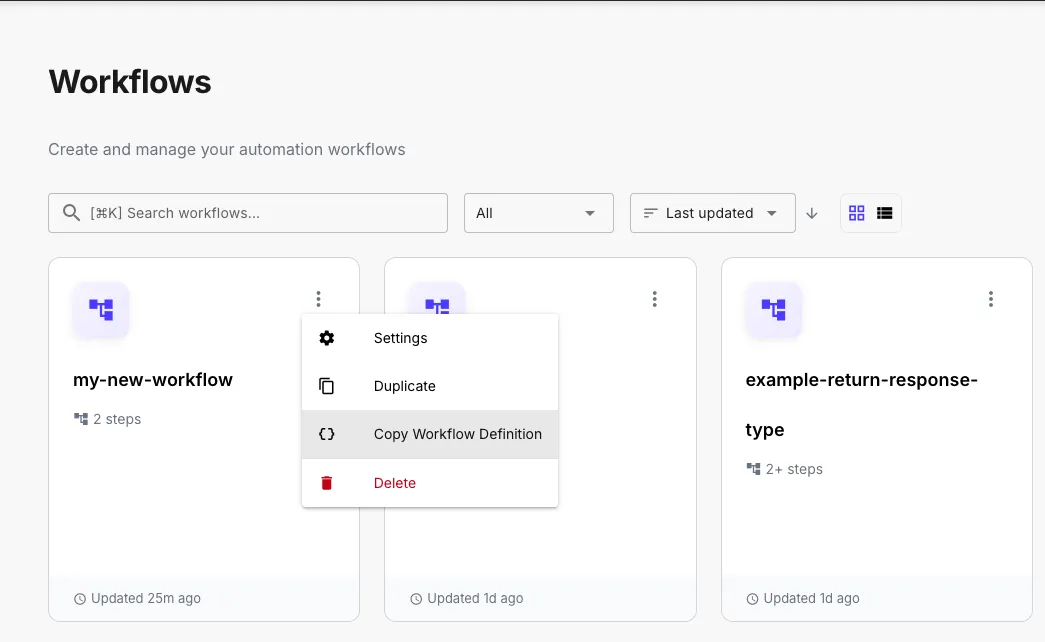
This copies the complete workflow definition — including all steps and the configured initial data. It’s more convenient than selecting all steps on the canvas with Cmd+C, which only copies the step definitions without initial data.
Keyboard Shortcuts
Section titled “Keyboard Shortcuts”| Action | Mac | Windows/Linux |
|---|---|---|
| Copy step(s) | Cmd+C | Ctrl+C |
| Cut step(s) | Cmd+X | Ctrl+X |
| Paste step(s) | Cmd+V | Ctrl+V |
| Select all | Cmd+A | Ctrl+A |
| Execute workflow | Cmd+Enter | Ctrl+Enter |
| Toggle Flo Agent | Cmd+I | Ctrl+I |
| Toggle Results Panel | Cmd+E | Ctrl+E |