
Knowledge Bases
Knowledge bases let you build searchable collections of documents that your AI workflow steps can reference. Upload files or add URLs, and QuickFlo automatically extracts the text, splits it into chunks, and creates vector embeddings — making the content available for semantic search during AI step execution.
How Knowledge Bases Work
Section titled “How Knowledge Bases Work”- Create a knowledge base and add documents (files or URLs)
- Processing happens automatically — documents are parsed, chunked, and embedded
- Search happens at execution time — when an AI step runs, the user’s prompt is used to find the most relevant chunks from the selected knowledge bases
- Context injection — matched chunks are added to the AI model’s context, giving it access to your specific information
This pattern is called Retrieval Augmented Generation (RAG) — the AI generates responses grounded in your actual documents rather than relying solely on its training data.
Creating a Knowledge Base
Section titled “Creating a Knowledge Base”- Navigate to Knowledge Bases in the QuickFlo sidebar
- Click New Knowledge Base
- Enter a name and optional description
| Field | Description |
|---|---|
| Name | A unique name within your organization (max 255 characters) |
| Description | Optional context about what this KB contains (max 2,000 characters) |
Adding Documents
Section titled “Adding Documents”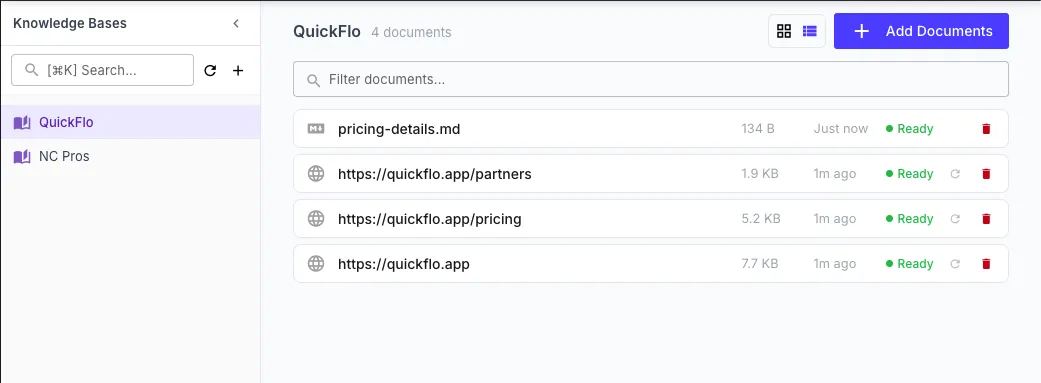
File Upload
Section titled “File Upload”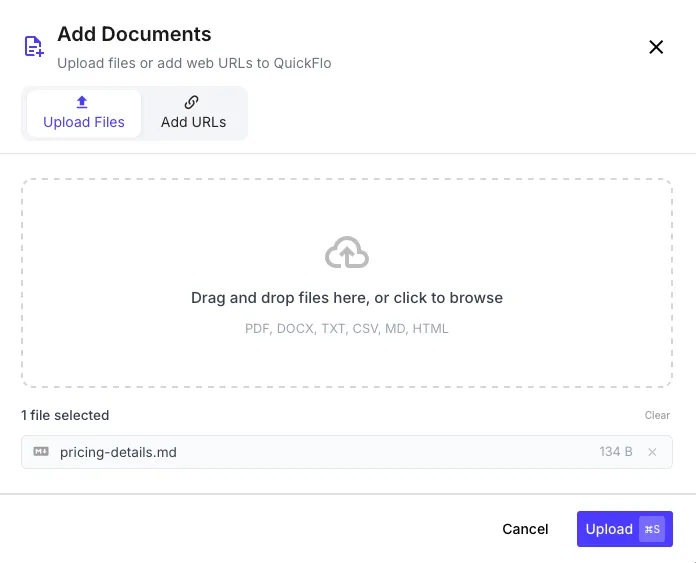
Upload documents directly from your computer. Supported file types:
| Format | Description |
|---|---|
| Scanned and text-based PDFs | |
| DOCX | Microsoft Word documents |
| PPTX | PowerPoint presentations |
| HTML | Web pages saved as HTML |
| TXT | Plain text files |
| MD | Markdown files |
| CSV | Comma-separated value files |
URL Import
Section titled “URL Import”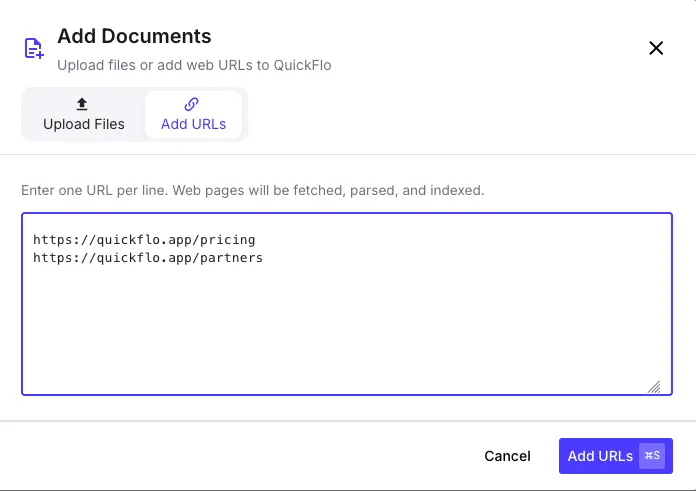
Add documents by URL — QuickFlo fetches the content automatically:
- In your knowledge base, click Add from URL
- Enter one or more URLs
- QuickFlo fetches each URL, extracts the text content, and processes it
Document Processing
Section titled “Document Processing”After adding a document, it goes through an automatic processing pipeline:
| Status | Meaning |
|---|---|
| Pending | Queued for processing |
| Processing | Being parsed, chunked, and embedded |
| Ready | Successfully processed and searchable |
| Failed | Processing encountered an error (see error message for details) |
Processing involves three stages:
- Parse — Extract text from the document based on its format
- Chunk — Split the text into semantic segments optimized for search
- Embed — Generate vector embeddings for each chunk using OpenAI’s
text-embedding-3-smallmodel
Using Knowledge Bases in Workflows
Section titled “Using Knowledge Bases in Workflows”Knowledge bases are used through the LLM Call step and the AI Agent step. When configuring either, you can select one or more knowledge bases to search.
Configuring an LLM Call with Knowledge Bases
Section titled “Configuring an LLM Call with Knowledge Bases”| Field | Description |
|---|---|
| Knowledge Bases | Select one or more knowledge bases from the dropdown |
| Knowledge Base Top-K | How many chunks to retrieve per query (1–50, default 15) — exposed under Advanced Settings |
| Prompt | Your prompt to the AI model — this is also used as the search query |
| Model | The AI model to use for generation |
How Search Works at Execution Time
Section titled “How Search Works at Execution Time”When the LLM Call step runs with knowledge bases selected:
- The prompt text is used as a search query
- QuickFlo finds the most relevant chunks across all selected knowledge bases using vector similarity search (cosine distance)
- The top matching chunks (up to 15 by default; configurable from 1 to 50 via the Knowledge Base Top-K advanced setting on the LLM Call or AI Agent step) are prepended to the system prompt as context
- The AI model generates its response with access to the retrieved context
Only chunks with a relevance score above the minimum threshold are included, ensuring the AI receives high-quality context.
Example
Section titled “Example”If you have a knowledge base called “Product Docs” containing your product documentation, an LLM Call step with:
| Field | Value |
|---|---|
| Knowledge Bases | Product Docs |
| Prompt | {{ initial.question }} |
The step will:
- Search “Product Docs” for chunks relevant to the user’s question
- Include the most relevant documentation excerpts as context
- Generate an answer grounded in your actual product documentation
The LLM Call step output contains the AI’s response:
{{ answer-question.text }} // the generated response{{ answer-question.usage.total }} // total tokens usedManaging Knowledge Bases
Section titled “Managing Knowledge Bases”Updating Documents
Section titled “Updating Documents”- File documents: Delete the old document and upload the updated version
- URL documents: Click Resync to re-fetch and re-process the URL content
Deleting Documents
Section titled “Deleting Documents”Deleting a document removes it and all its chunks from search results. The change takes effect immediately — subsequent AI step executions will no longer find content from deleted documents.
Deleting a Knowledge Base
Section titled “Deleting a Knowledge Base”Deleting a knowledge base removes all its documents and chunks permanently. Any workflows referencing the deleted KB will no longer have that knowledge base context available.
Limits
Section titled “Limits”| Limit | Value |
|---|---|
| Knowledge base name | 255 characters |
| Description | 2,000 characters |
| Document name | 255 characters (unique within KB) |
| Embedding model | text-embedding-3-small (1,536 dimensions) |
| Search results per query (default) | 15 chunks (configurable per step from 1 to 50) |
| Minimum relevance score | 0.3 (cosine similarity) |