
Build Your First Workflow
Build a webhook that accepts a city and returns its current weather. You need a QuickFlo workspace and a terminal. The two public weather endpoints require no account.
curl -X POST https://run.quickflo.app/w/@your-org/weather-lookup \ -H "Authorization: Bearer YOUR_WEBHOOK_SECRET" \ -H "Content-Type: application/json" \ -d '{"city": "Austin"}'Start with the finished steps
Copy the workflow, create a blank workflow, then paste it onto the canvas. Add the webhook trigger in step 2.
Open a blank canvas in QuickFlo and paste. The configured steps appear immediately.
1. Create the workflow
Section titled “1. Create the workflow”-
Open Workflows and select New Workflow.
-
Name it
Weather Lookup API. -
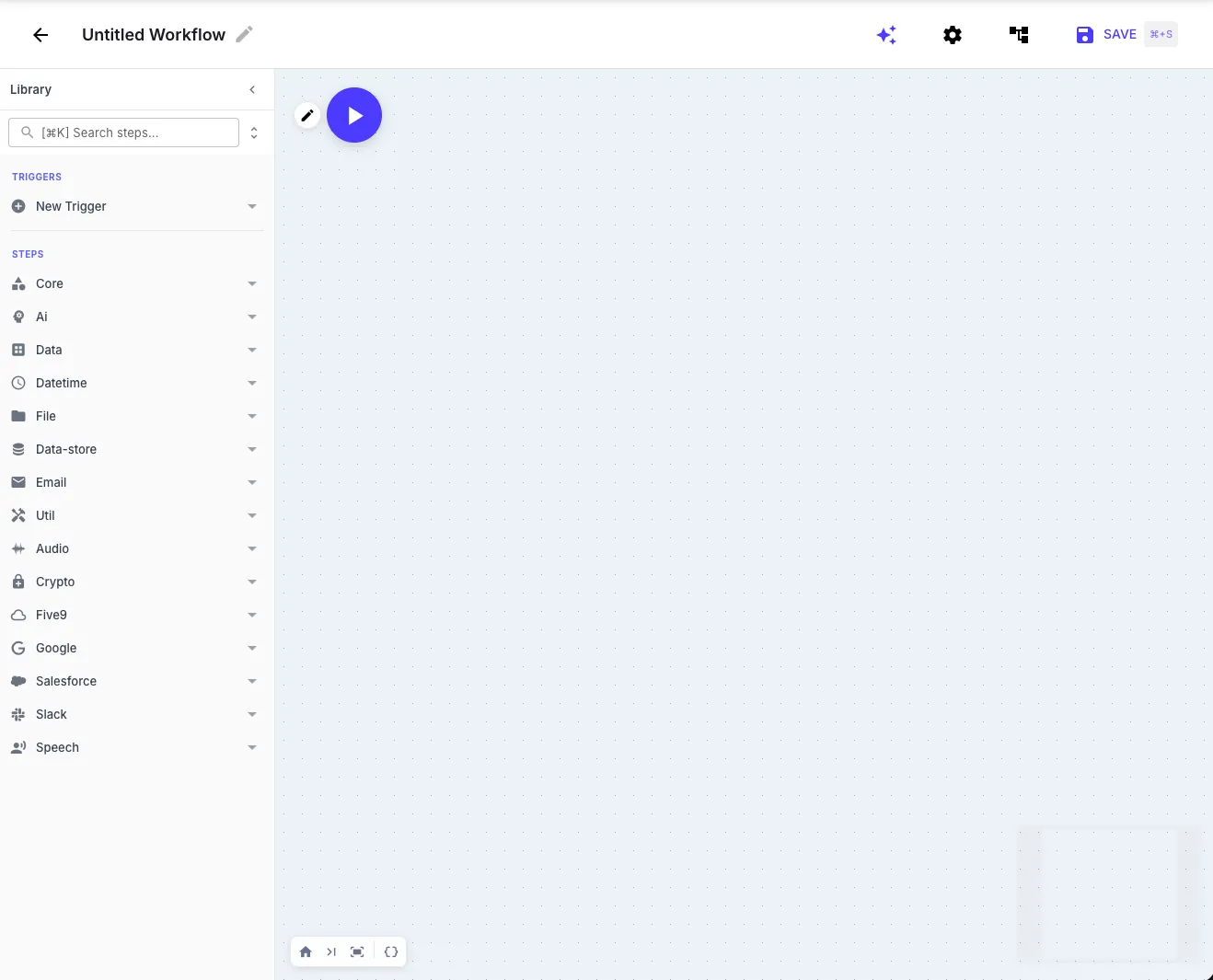
The builder opens with the step library on the left and your canvas on the right.
2. Add a webhook trigger
Section titled “2. Add a webhook trigger”-
Select New Trigger, then Webhook.
-
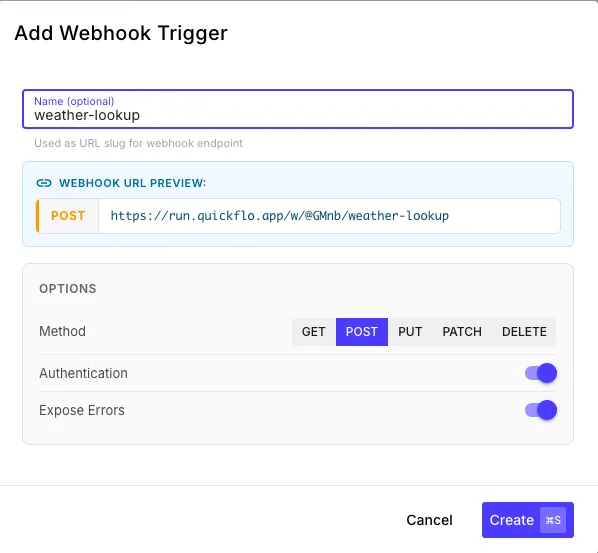
Set the name to
weather-lookup, choosePOST, and keep Authentication on. -
Create the trigger. Copy its webhook URL and secret; you will use both when you test the workflow.
The request body is available as {{ initial.* }}. For this example, {{ initial.city }} resolves to the city sent by the caller.
3. Look up the city
Section titled “3. Look up the city”Add an HTTP step and configure it:
| Field | Value |
|---|---|
| Step ID | geocode |
| Method | GET |
| URL | https://geocoding-api.open-meteo.com/v1/search |
Add these query parameters:
| Key | Value |
|---|---|
name | {{ initial.city }} |
count | 1 |
Run a test with {"city": "Austin"}. The response should include latitude, longitude, and country.
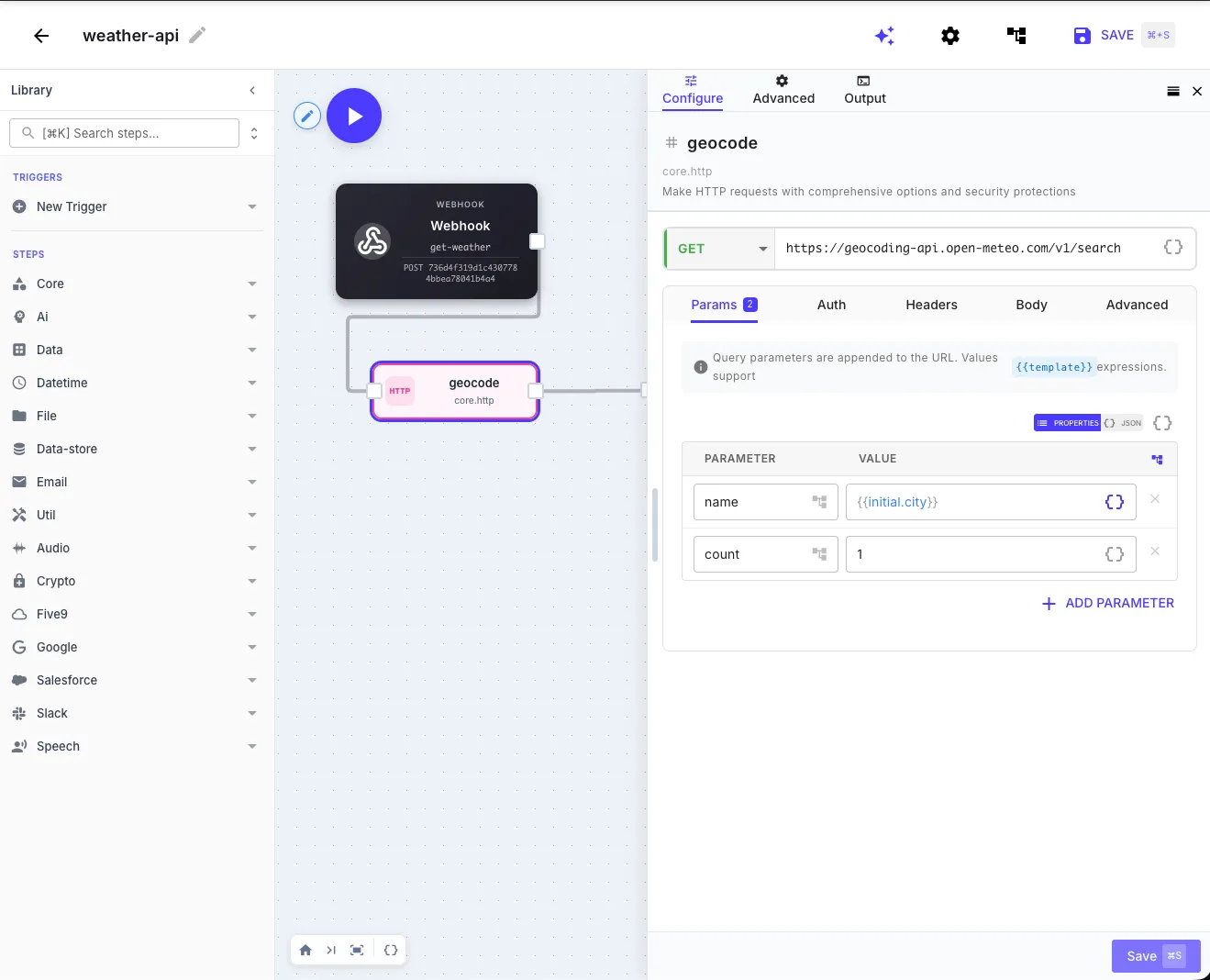
Every step output is available to the steps that follow it. Here, Austin’s latitude becomes {{ geocode.body.results[0].latitude }}.
4. Fetch the forecast
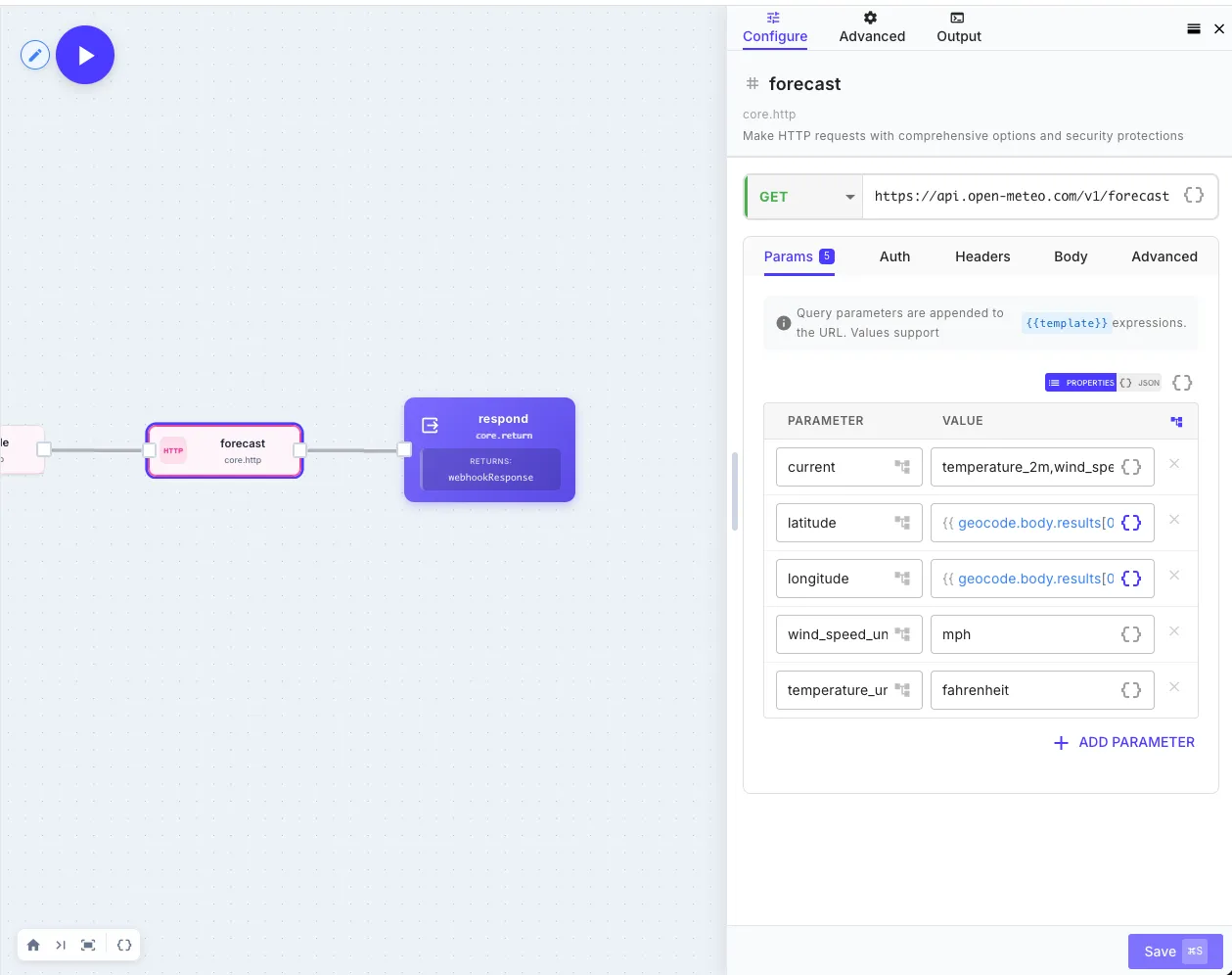
Section titled “4. Fetch the forecast”Add a second HTTP step:
| Field | Value |
|---|---|
| Step ID | forecast |
| Method | GET |
| URL | https://api.open-meteo.com/v1/forecast |
Add these query parameters:
| Key | Value |
|---|---|
latitude | {{ geocode.body.results[0].latitude }} |
longitude | {{ geocode.body.results[0].longitude }} |
current | temperature_2m,wind_speed_10m,weather_code |
temperature_unit | fahrenheit |
wind_speed_unit | mph |
QuickFlo suggests earlier step outputs when you type {{. Run another test and confirm the response includes a current object.
5. Return a useful response
Section titled “5. Return a useful response”Add a Return step. Set the status to 200 and use this JSON body:
{ "city": "{{ initial.city }}", "country": "{{ geocode.body.results[0].country }}", "temperatureF": "{{ forecast.body.current.temperature_2m }}", "windMph": "{{ forecast.body.current.wind_speed_10m }}", "weatherCode": "{{ forecast.body.current.weather_code }}"}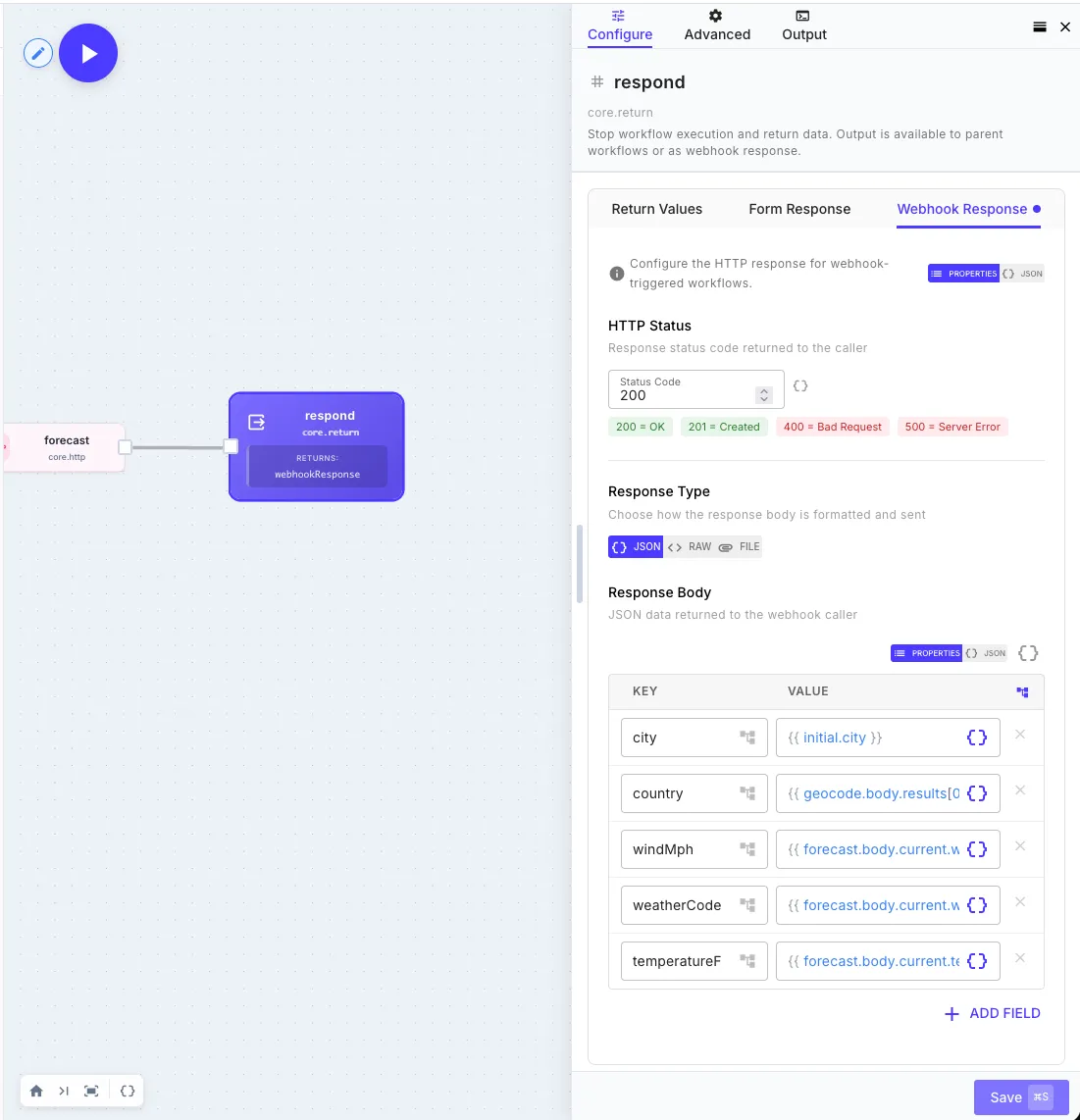
The Return step makes the webhook respond with this body. Without one, the webhook accepts the run asynchronously and returns an execution ID.
6. Call it
Section titled “6. Call it”Save the workflow, then replace the URL and secret below with the values from your trigger:
curl -X POST https://run.quickflo.app/w/@your-org/weather-lookup \ -H "Authorization: Bearer YOUR_WEBHOOK_SECRET" \ -H "Content-Type: application/json" \ -d '{"city": "Austin"}'{ "city": "Austin", "country": "United States", "temperatureF": 72.3, "windMph": 8.4, "weatherCode": 0}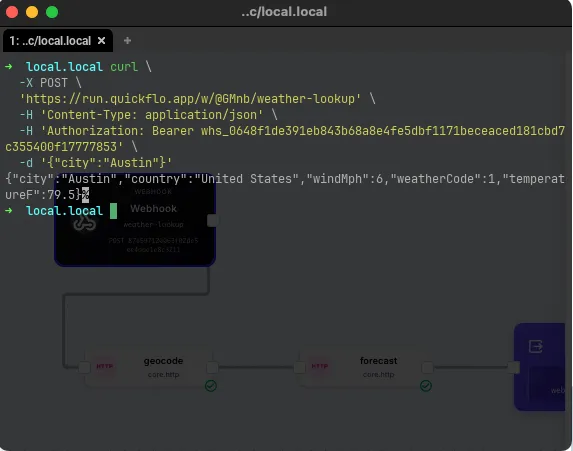
Where to go next
Section titled “Where to go next”- Learn the small set of ideas behind every workflow in Core Concepts.
- Browse working recipes and paste one onto a canvas.
- Open Flo Agent with Cmd+I or Ctrl+I and describe the next workflow you want.