
Executions
Every workflow run creates an execution. Open Executions when you need to answer a practical question: Did it run? What started it? Where did it stop? What data moved through it?
Find the run that matters
Section titled “Find the run that matters”Start broad, then narrow:
- Choose a time range.
- Use the filter rail to select a workflow, status, or trigger type.
- Search by workflow name or business data.
- Open the matching row to inspect the trace.
The search bar accepts ordinary text and field:value filters. These are useful starting points:
record-sync-get-list-contactsargs.email:john@example.com*:5551234567Press ⌘ K to focus search. Filters work together, so you can combine a failed status, a webhook trigger, and a customer identifier without writing one long query.
Read the table
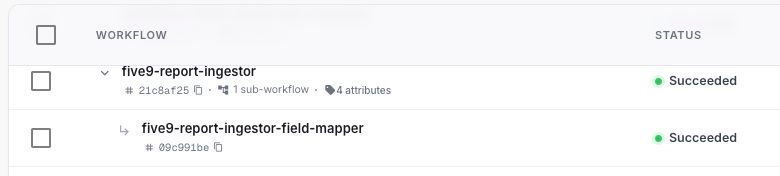
Section titled “Read the table”Each row shows the workflow, status, start time, duration, and trigger. The short execution ID is copyable. Runs with searchable attributes show an attributes badge; select it to see the indexed business values.
Sub-workflows stay grouped under their parent run. Expand the parent to follow the whole chain without losing the context that started it.
Statuses
Section titled “Statuses”| Status | What it means |
|---|---|
| Running | The workflow is still in progress. |
| Succeeded | Every required step finished successfully. |
| Completed with errors | The workflow reached the end after a warning or a handled failure. |
| Failed | A step could not complete and the workflow stopped. |
| Cancelled | The run was stopped before it finished. |
| Rejected | QuickFlo declined the run before execution began. Open it for the reason. |
Use View options to adjust the table for the investigation at hand. Sorting by start time is usually the fastest way to find a report from a customer or an alert.
Inspect an execution
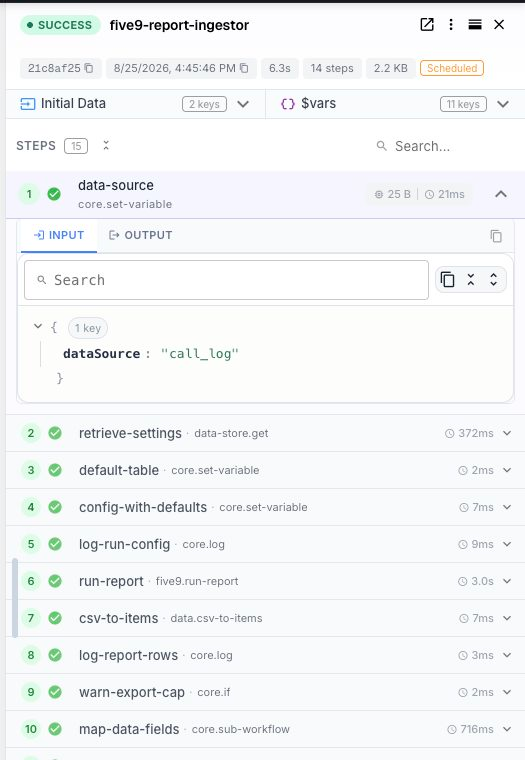
Section titled “Inspect an execution”Select a row to open its detail panel. The header gives you the execution ID, start time, duration, trigger, and resource tier. The trace below it shows each step in order.
For a surprising result, check:
- Initial data — what entered the workflow.
- Step input — the resolved values the step received.
- Step output — the data it returned.
- Errors — the message and structured details QuickFlo recorded.
- Timing — where the run spent its time.
For a failed run, begin with the first failed step. Later steps may simply have been skipped because the workflow had already stopped.
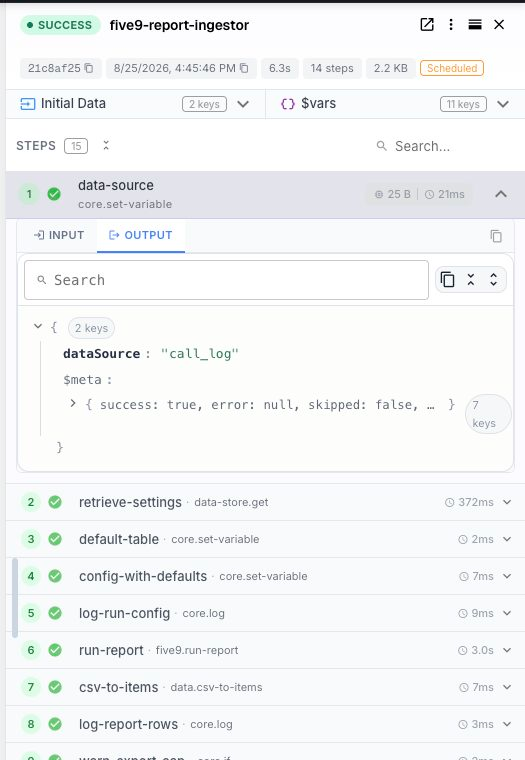
Select a completed step, then switch between Input and Output. Input shows the resolved data the step received; Output shows what the step returned, including its execution metadata.
The detail panel also lets you open the run in the workflow builder. Use the row menu for actions such as re-running or downloading a trace when those actions are available to your role.
Search by business context
Section titled “Search by business context”Execution IDs are useful for machines. Searchable attributes are useful for people.
In Workflow Settings, mark stable input fields such as customerId, orderId, or caseNumber as searchable. New runs display those values beside the execution ID. Select a value to add it to the current search.
Good searchable attributes are:
- present near the start of the workflow;
- meaningful to the person investigating the run;
- stable across related systems;
- safe for everyone who can view executions in the organization.
Avoid indexing large payloads or fields you would never search.
Executions or Platform Logs?
Section titled “Executions or Platform Logs?”Use Executions to understand one workflow run from input to output. Use Platform Logs to search events across workflows and triggers, follow live activity, or investigate a pattern that spans many runs.
For retries, handled failures, and step-level controls, continue to Error Handling.