
Return Step
The return step terminates workflow execution immediately and optionally shapes the response sent back to the caller. All remaining steps after the return are skipped. The step editor adapts its form to the trigger type — webhook, form (post-submit), form (confirmation), form (prefill), or sub-workflow.
Webhook Response
Section titled “Webhook Response”When a workflow is triggered by a webhook, the return step controls what the caller receives back as the HTTP response. Configure it in the Webhook Response tab of the return step editor:
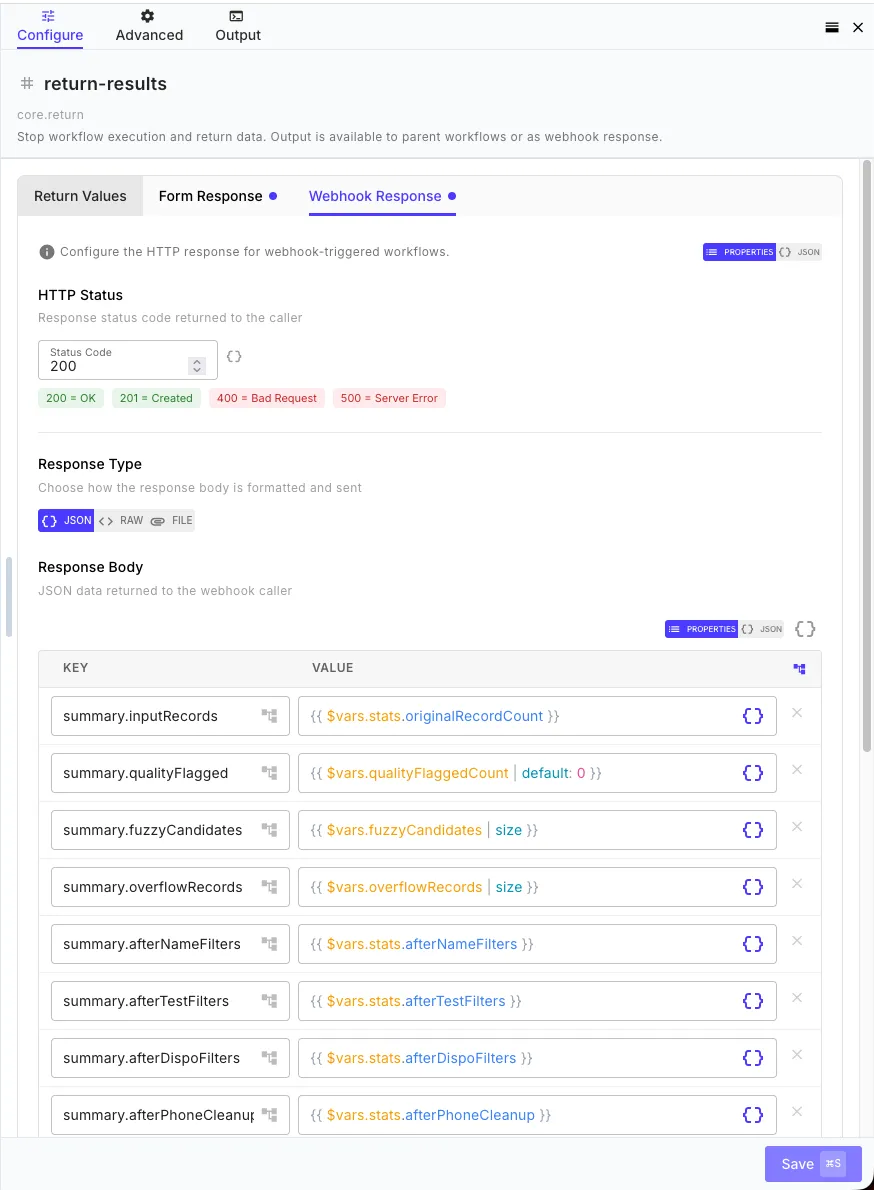
| Field | Description | Example |
|---|---|---|
| Status Code | HTTP status code to return (default 200) | 201 |
| Body | Response body — JSON object, string, or template expression | { "userId": "{{ create-user.id }}" } |
| Body Encoding | json (default), text (raw string / XML / HTML), or base64 (binary file) | text |
| Content Type | MIME type for the Content-Type header (default application/json) | text/csv |
| Filename | If set, sets Content-Disposition so the caller’s browser triggers a download. Only meaningful with bodyEncoding: "base64". | report.csv |
| Headers | Optional custom response headers as a flat key→value map. Values support templates. | { "X-Request-Id": "{{ start.id }}", "Cache-Control": "no-store" } |
Reserved transport headers (Content-Length, Transfer-Encoding, Connection, Keep-Alive, Host) are ignored. Content-Type and Content-Disposition set via the Content Type / Filename fields take precedence over the same header set in Headers.
Form Submission Response
Section titled “Form Submission Response”When triggered by a form, the return step controls what the submitter sees after submission. Configure it in the Form Response tab of the return step editor:
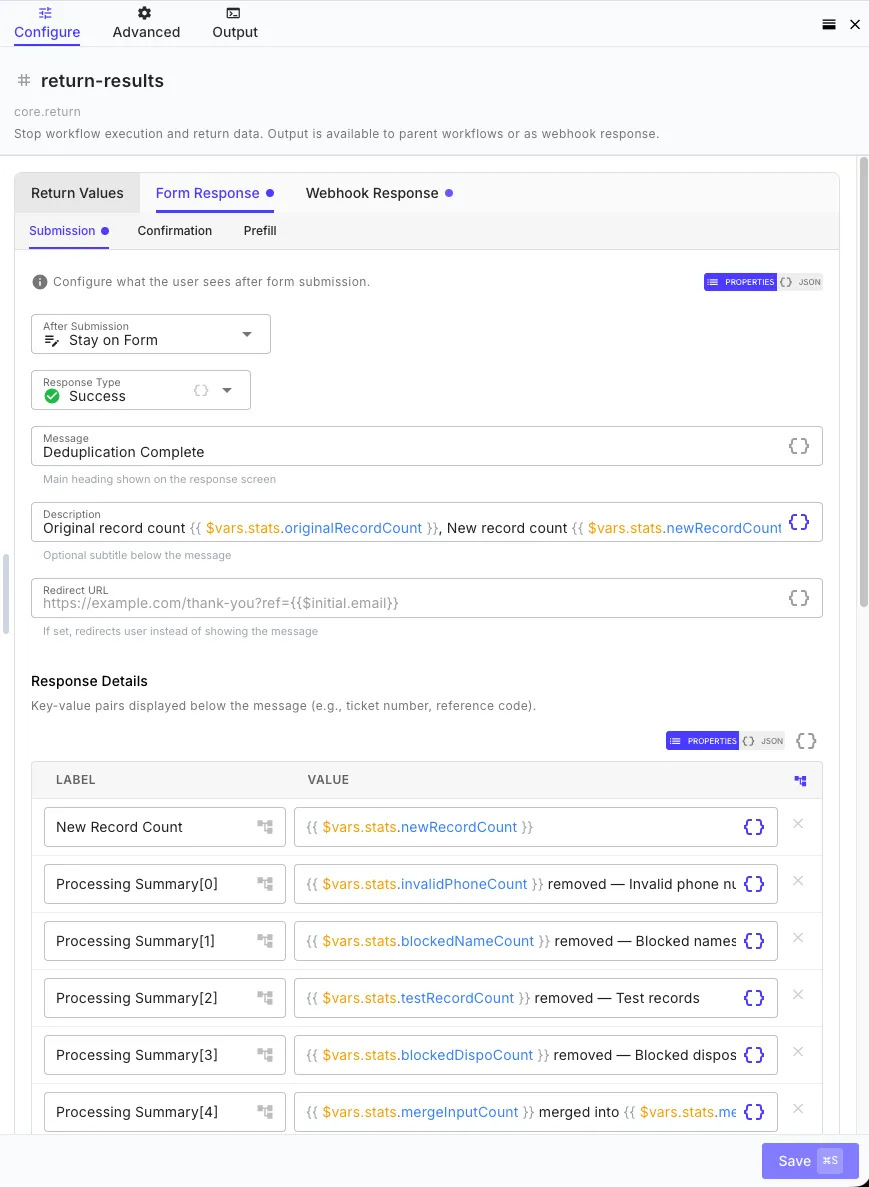
| Field | Description | Example |
|---|---|---|
| Type | Visual style: success (green), error (red), warning (amber), or info (blue) | success |
| Message | Main heading shown to the user — supports templates | Thanks, {{ initial.name }}! |
| Description | Subtitle below the heading | Your request has been received. |
| Redirect URL | If set, redirects the user instead of showing the response screen — supports templates | https://example.com/thank-you?ref={{ create-order.id }} |
| Data | Key-value pairs displayed below the message as a structured detail table | { "Reference": "{{ create-order.id }}", "ETA": "2 days" } |
| Actions | Array of [{ label, url, style?, mode? }] for action buttons. See Form Triggers — Action Buttons | [{ "label": "View order", "url": "..." }] |
| Behavior | redirect (default), stay, or reset — what happens after the user clicks Submit Another | stay |
Form Confirmation Response
Section titled “Form Confirmation Response”A confirmation workflow runs after the user clicks Submit but before the main workflow runs, and returns a structured summary that QuickFlo shows in a confirmation dialog. The user has to explicitly approve before the main workflow executes.
The confirmation workflow’s return step writes a formConfirmation object:
| Field | Description |
|---|---|
title | Dialog heading (e.g. "Confirm your order") |
summary | Optional subtitle below the title |
items | Array of detail rows: [{ label, value?, type? }]. type is 'info' (default), 'warning', or 'danger' and controls the row’s color. |
warningMessage | Optional amber warning message displayed below the items |
{ "stepId": "review-summary", "stepType": "core.return", "input": { "formConfirmation": { "title": "Confirm your order", "summary": "Please review before submitting.", "items": [ { "label": "Plan", "value": "Pro" }, { "label": "Total", "value": "$99/month", "type": "info" }, { "label": "Auto-renew", "value": "Enabled", "type": "warning" } ], "warningMessage": "Cancellation is subject to our refund policy." } }}If the confirmation workflow fails or returns an empty formConfirmation, the dialog still appears with a generic prompt — the user can confirm or cancel either way.
Form Prefill Response
Section titled “Form Prefill Response”A prefill workflow runs before the form renders and returns partial JSON Schema overrides for individual form fields — pre-populating defaults, restricting dropdown options based on the user’s session, hiding fields conditionally, and so on.
The prefill workflow’s return step writes a formPrefill object:
| Field | Description |
|---|---|
fields | Map of { fieldName: PrefillFieldOverrides } — each entry overrides a portion of the form’s JSON Schema for that field |
meta.title | Optional — override the form’s title |
meta.description | Optional — override the form’s description |
Each PrefillFieldOverrides entry can carry any of the following — they’re merged into the field’s JSON Schema before the form renders:
| Override | Purpose |
|---|---|
default | Pre-populate the field’s value |
enum | Restrict dropdown / multi-select options to this list |
enumLabels | Map of { enumValue: humanLabel } for friendly display names |
enumCaptions | Map of { enumValue: longerCaption } for descriptions under each option |
visible | Set to false to hide the field for this session |
readonly | Set to true to make the field read-only |
properties | For table/multi-row fields, nested overrides per column |
Example — pre-populate a contact form by looking up a customer from a query string token, restrict a region dropdown to the regions the user has access to, and hide the internal_notes field for non-admins:
{ "stepId": "prefill", "stepType": "core.return", "input": { "formPrefill": { "fields": { "first_name": { "default": "{{ lookup-customer.body.firstName }}" }, "email": { "default": "{{ lookup-customer.body.email }}", "readonly": true }, "region": { "enum": "{{ lookup-customer.body.allowedRegions }}", "default": "{{ lookup-customer.body.defaultRegion }}" }, "internal_notes": { "visible": false } }, "meta": { "title": "Welcome back, {{ lookup-customer.body.firstName }}" } } }}If the prefill workflow fails or times out, the form still renders with its static schema — a non-blocking warning is set on the response, and the user can fill out the form as normal.
Sub-Workflow Return
Section titled “Sub-Workflow Return”When used inside a sub-workflow, the return step defines what the parent workflow receives as the step output. Add key-value pairs as flat top-level fields (no wrapper) for each value to return:
| Key | Value |
|---|---|
userId | {{ user-check.id }} |
status | completed |
The parent workflow accesses these via the sub-workflow step ID:
{{ run-sub-workflow.userId }}{{ run-sub-workflow.status }}Conditional Returns
Section titled “Conditional Returns”Each step has a Skip If condition in its settings. You can use this to make a return step conditional — for example, returning a 404 early if a lookup fails, while letting the workflow continue if it succeeds.
Sync vs Async Execution
Section titled “Sync vs Async Execution”QuickFlo workflows can execute synchronously (wait for completion and return the result) or asynchronously (queue in the background and return immediately). The return step is what determines which mode is used.
How It’s Determined
Section titled “How It’s Determined”The default mode is auto, which decides based on the trigger type and whether a return step exists:
| Trigger | Has Return Step with Response? | Mode |
|---|---|---|
| Webhook | Yes (status code / body defined) | Sync — caller waits, gets return step output |
| Webhook | No | Async — caller gets 202 Accepted with executionId |
| Form | Yes (form response defined) | Sync — submitter sees the response |
| Form | No | Async — submitter sees a default success message |
| Schedule | N/A | Async always |
| Manual/API | N/A | Async by default |
Overriding the Mode
Section titled “Overriding the Mode”You can force sync or async execution regardless of auto-detection:
- Query parameter:
?mode=syncor?mode=asyncon the webhook/execution URL - Workflow settings: Set the execution mode to
syncorasyncin the workflow settings dialog
What the Caller Receives
Section titled “What the Caller Receives”Synchronous — The caller gets exactly what the return step defines, with the status code you set (default 200).
Asynchronous — The caller gets a 202 Accepted response with an executionId that can be used to check status later.