
Initial Data
Initial data is the shape of the input a workflow expects, plus any defaults. You define it in Workflow Settings → Initial Input Schema and read the values back at runtime as {{ initial.key }}.
There’s only one entry point. However a run starts, the incoming values land in the same initial object. You model the shape once and it holds for every caller.
Modeling the shape pays off while you build. If a webhook will send { orderId, items }, declare it here and wire steps against {{ initial.orderId }} before the first request arrives. You write the shape as short type prefixes, not JSON Schema by hand.
One definition does three jobs: it’s the contract a caller reads, it fills in defaults when a caller omits a field, and it seeds the test data a manual run starts from.
Where initial data comes from
Section titled “Where initial data comes from”Every way a workflow can start feeds the same initial:
| How the run starts | What becomes initial |
|---|---|
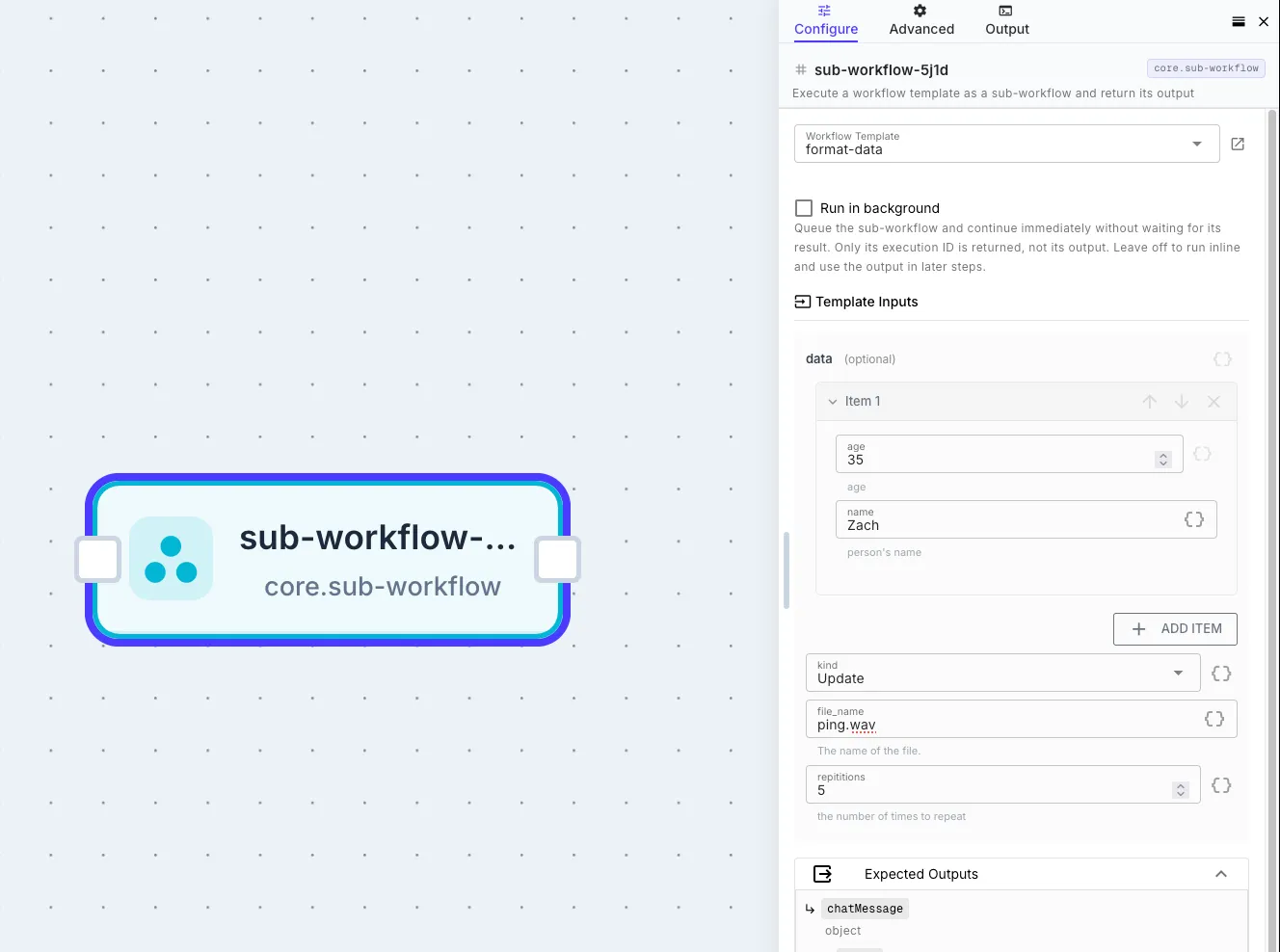
| Sub-workflow step | The inputs the parent workflow passes |
| Agent tool call | The arguments the AI agent supplies |
| Webhook | The request body (with headers, query, and params under initial.webhook) |
| Scheduled / event trigger | The payload configured on the trigger |
| Manual run (Play) | The editable test data, which starts from the values you set here |
| API call | The data the caller provides |
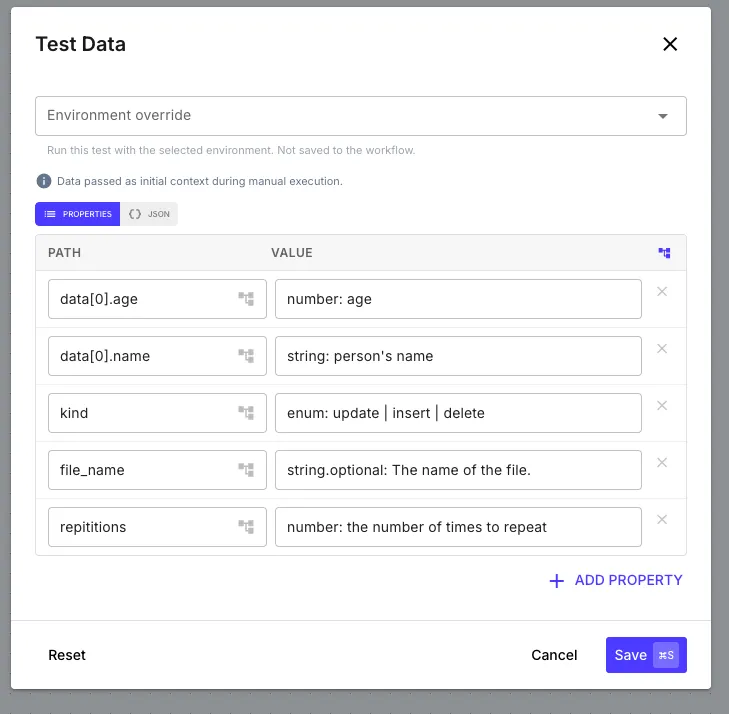
There is no separate trigger, event, or payload namespace at the root. Trigger-specific extras live in sub-keys like initial.webhook and initial.form. For the exact runtime shape of each trigger type, see Template Syntax → Initial Data.
What a field defines
Section titled “What a field defines”Defining a field in the Initial Input Schema does two things:
-
It declares the contract. The fields, their types, and which are required describe what a caller should pass in. When your workflow is used as a sub-workflow or an agent tool, this contract is exactly what the caller sees: the sub-workflow step renders an input form from it, and an AI agent reads it as the tool’s parameter spec. Get the types right and those callers render the inputs correctly.
A sub-workflow call is also validated against the schema. A missing required field or a wrong type fails the call with a validation error. An agent tool is not validated at run time: the schema tells the model what to send, but a mismatch is not rejected. Webhook and direct runs are not validated either.
-
It can supply a default. Pin a field with the pin button and its value becomes a real default: the workflow uses it whenever a caller omits that field.
Typing your fields
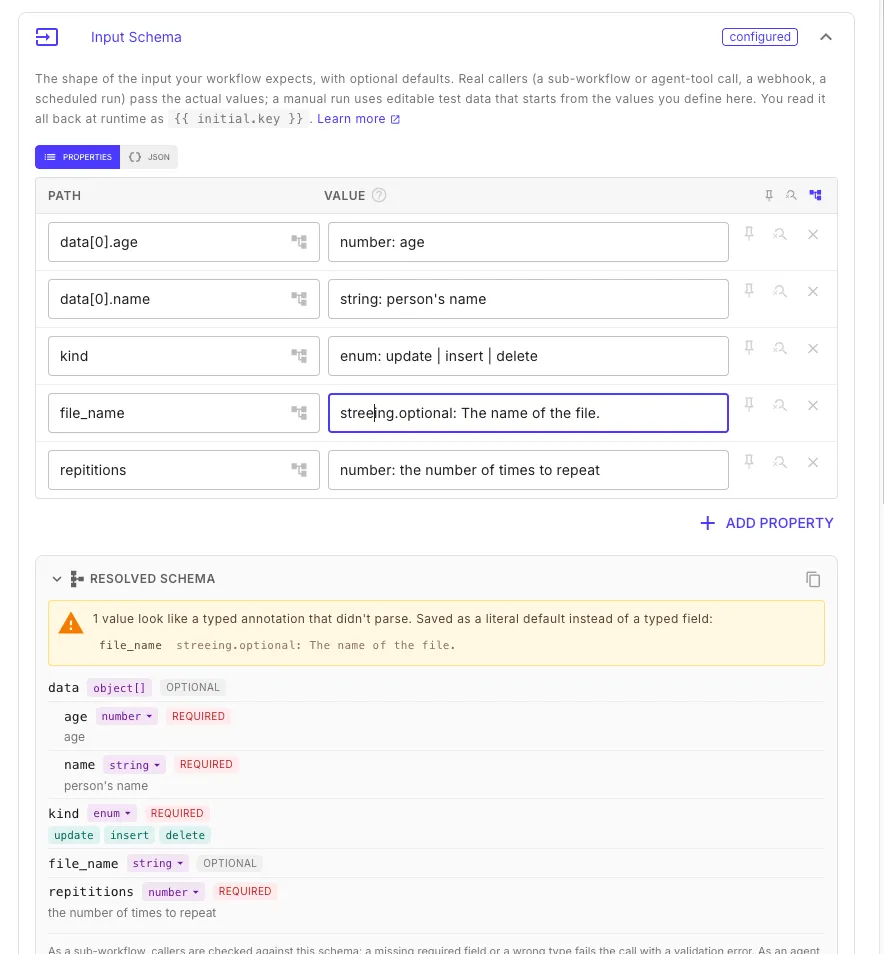
Section titled “Typing your fields”In Properties mode, the PATH column is the field name and the VALUE column describes the field. A bare value is just a string. To type a field, prefix the value:
| Value | Result |
|---|---|
value | string (the default) |
number: Quantity ordered | number, described as “Quantity ordered” |
boolean: Dry run flag | true/false |
string[]: Tag list | array of strings |
object[]: Line items | array of generic objects |
send|book|cancel: The action | enum (one of the listed values) |
number.optional: Page size | append .optional to any type to make it optional |
Everything after the colon is the field’s description, not a default value. It tells a caller (or the LLM, for agent tools) what the field is for.
By default, a field with a type prefix is required. Add .optional to make it optional.
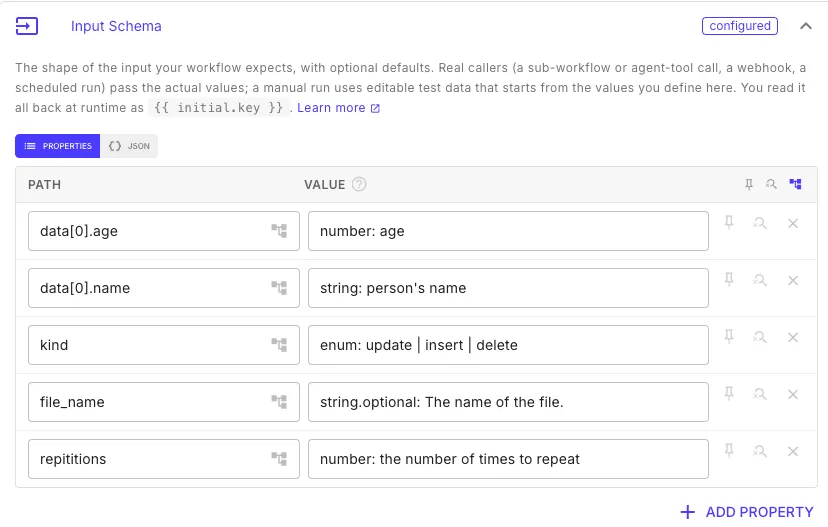
For an enum, the description is optional: send|book|cancel on its own is a valid enum. You can also write it with an explicit enum: prefix, consistent with the other types: enum: send | book | cancel. Add .optional to either form (send|book|cancel.optional or enum.optional: send | book | cancel).
Nesting
Section titled “Nesting”Use dot-notation in the PATH to nest fields:
metadata.orgId → string: Owning orgmetadata.source → string: Where the record came fromFor a typed array of objects, declare each field of the first item with bracket notation:
lineItems[0].product → string: Product namelineItems[0].qty → number: QuantityFor anything deeper or more complex, switch to JSON mode and write the structure directly.
The resolved schema preview
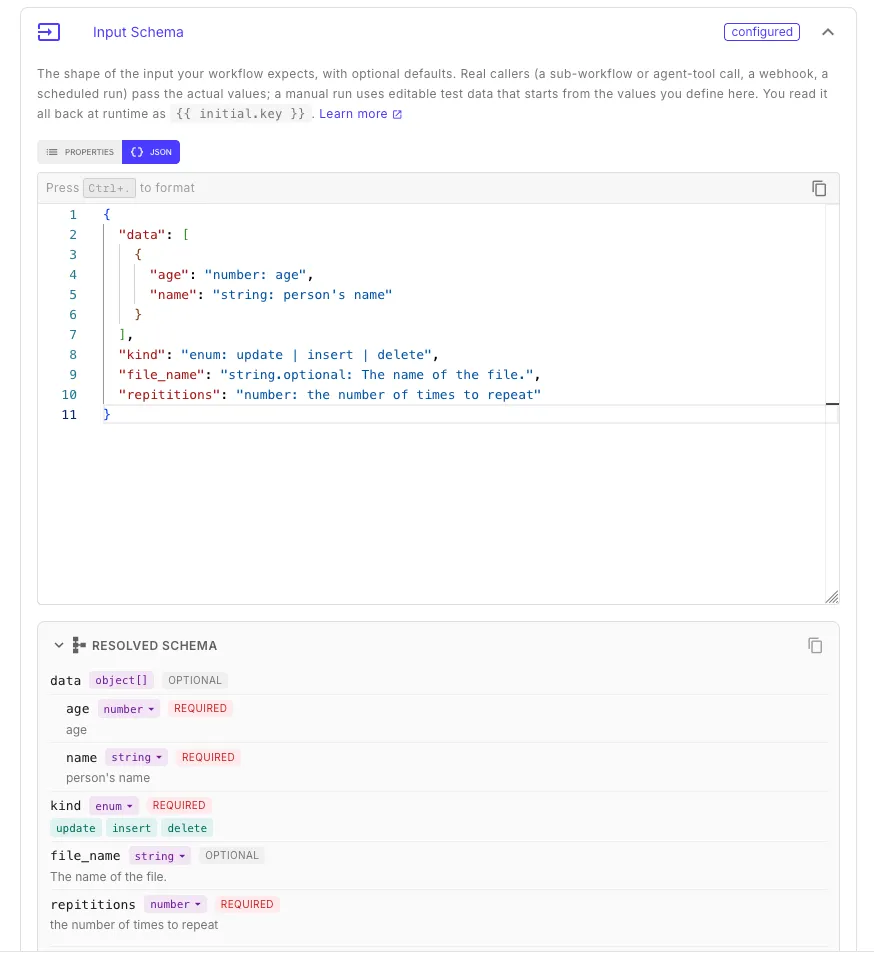
Section titled “The resolved schema preview”Under the editor, the Resolved Schema panel shows the exact contract your entries compile to: every field, its type, whether it is required or optional, enum values, and descriptions. It updates as you type, so you can see the shape a caller will receive without leaving the dialog. Use the copy button to grab the raw JSON Schema.
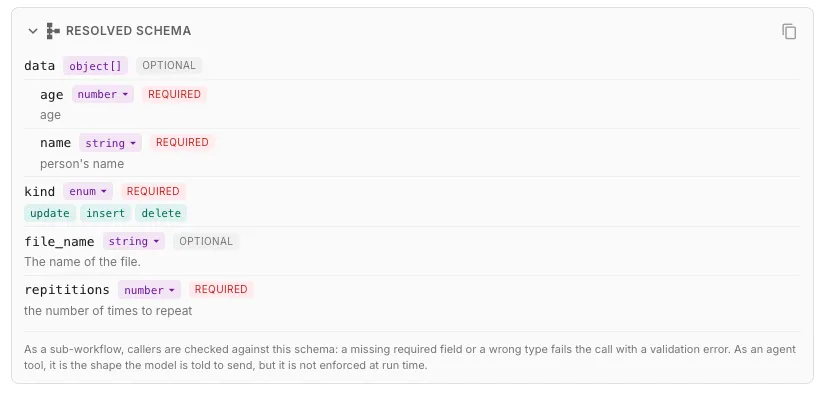
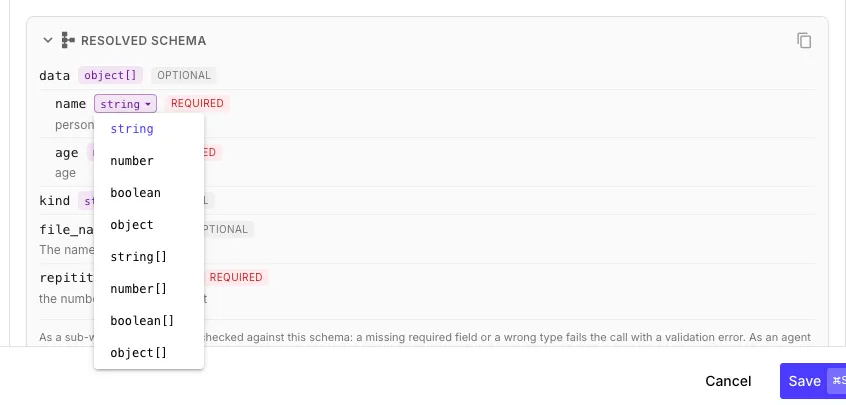
You can also edit from the preview. Click a field’s type to pick a different one, or click its required / optional badge to flip it. The change is written back into the VALUE box, so you can shape the contract by clicking instead of memorizing the prefixes.
Reading it at runtime
Section titled “Reading it at runtime”Wherever a step takes a template, reference initial data by key:
{{ initial.orgId }}{{ initial.lineItems[0].product }}{{ initial.webhook.query.page }}The full per-trigger structure (webhook, form, and the rest) is documented in Template Syntax → Initial Data.
Related
Section titled “Related”- Sub-Workflow step: how a parent passes inputs into a template’s
initial - Triggers: how each trigger type populates
initial - Template Syntax: reading
initialand everything else in step config