
Sub-Workflow
The sub-workflow step (core.sub-workflow) executes another workflow as a nested step inside your parent workflow. This lets you break complex automations into smaller, reusable pieces — define a workflow once, then call it from any number of other workflows with different inputs.
How It Works
Section titled “How It Works”- Create a workflow template — a standalone workflow with defined inputs and outputs
- Add a sub-workflow step in the parent workflow and select the template
- Pass inputs — the parent provides values for the template’s input parameters
- Receive outputs — the template’s Return step defines what gets sent back to the parent
The sub-workflow runs with its own execution context but inherits the parent’s environment and connections.
Creating a Workflow Template
Section titled “Creating a Workflow Template”Any workflow can become a template. Open Workflow Settings and enable the Template toggle at the bottom. This makes the workflow available for selection in sub-workflow steps.
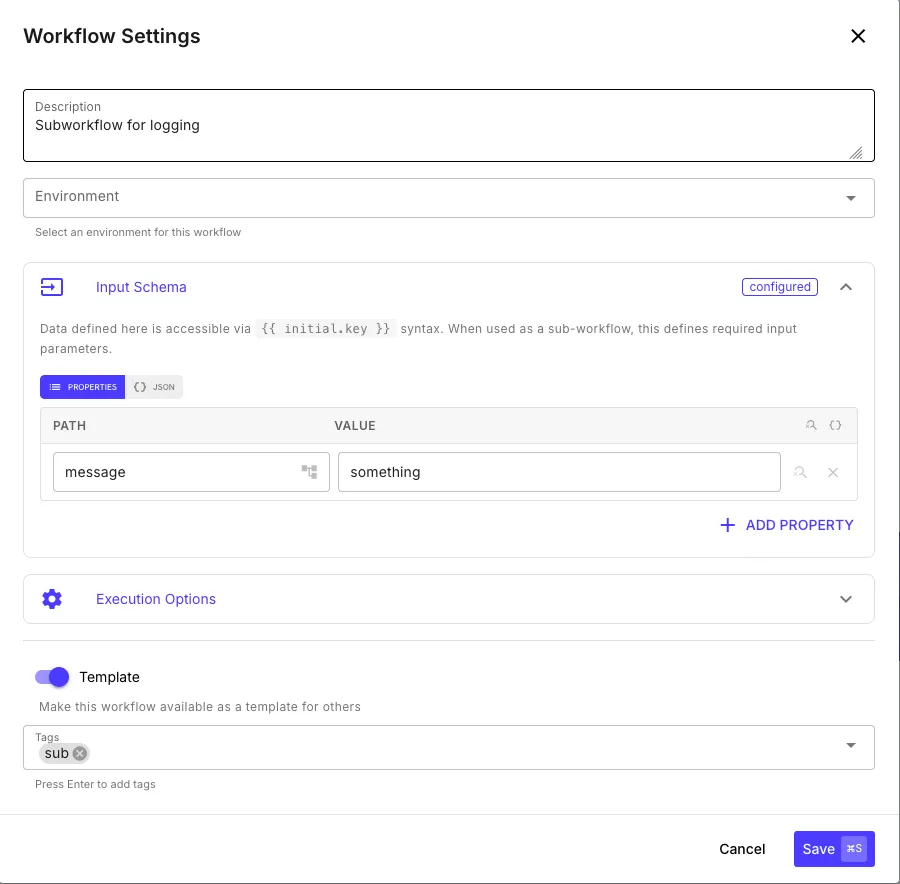
Use the Initial Input Schema to define the parameters your template accepts. Each property becomes a required input that the parent workflow must provide. Inside the sub-workflow, these are accessible via {{ initial.key }} syntax.
Defining Outputs with a Return Step
Section titled “Defining Outputs with a Return Step”Add a Return step to your template to define what data gets sent back to the parent workflow. Each key-value pair you add becomes an output field.
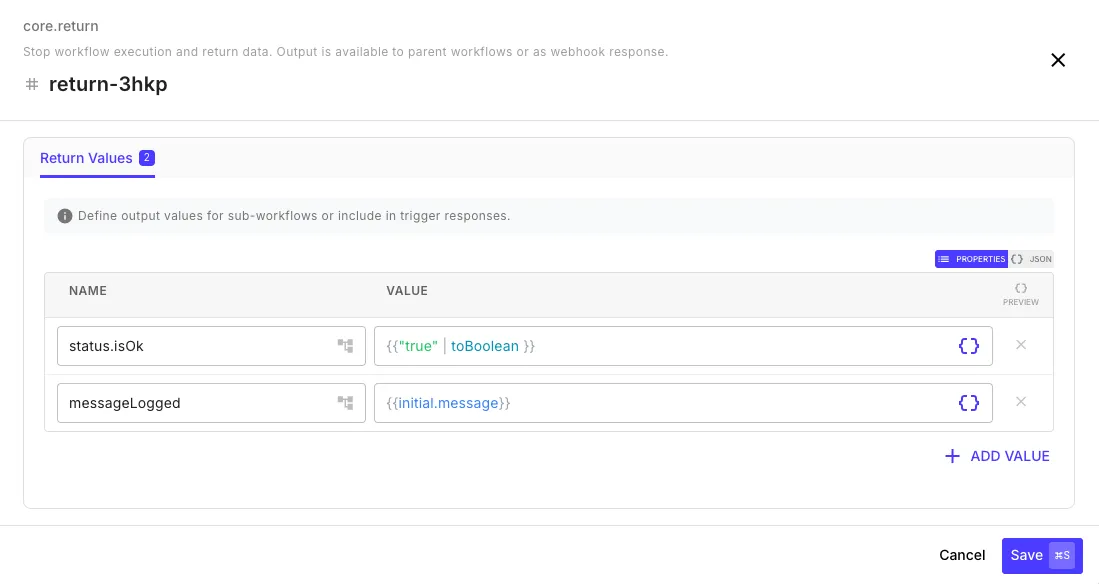
Any key-value pairs you set here become the output of the sub-workflow step in the parent.
Using the Step
Section titled “Using the Step”In the parent workflow, add a Sub-Workflow step. The step editor shows:
- Workflow Template — dropdown to select which template to run
- Template Inputs — auto-generated input fields based on the template’s Initial Input Schema
- Expected Outputs — read-only list showing the fields the template’s Return step will produce
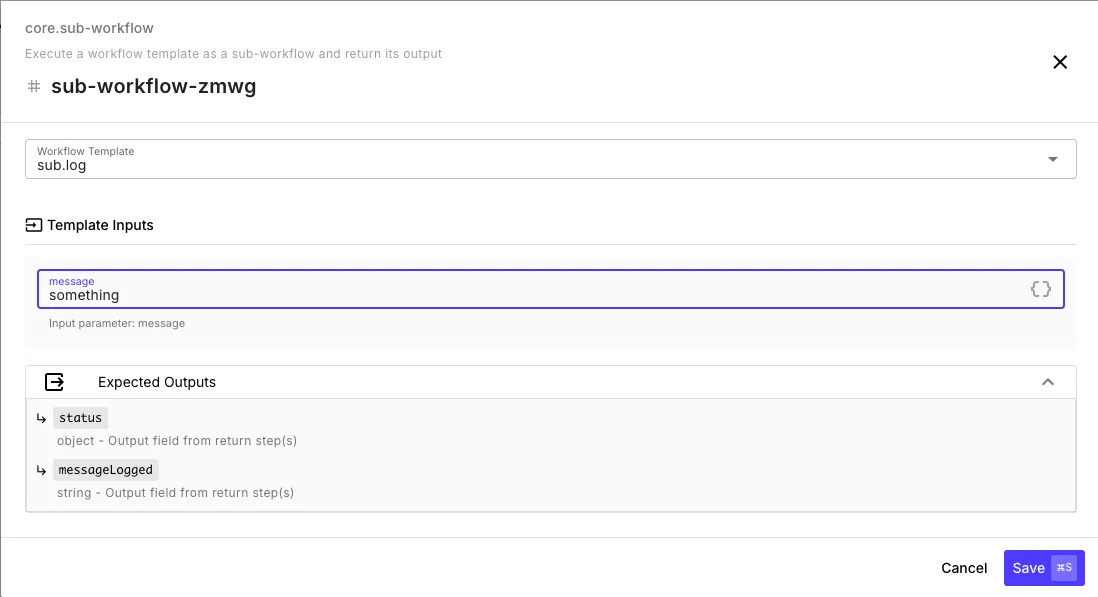
In this example, the parent calls the sub.log template, passes "something" as the message input, and can see that the template will return status (object) and messageLogged (string).
After the sub-workflow step runs, reference its outputs by the step ID:
{{ sub-workflow-zmwg.status }}{{ sub-workflow-zmwg.messageLogged }}Running in the Background
Section titled “Running in the Background”By default a sub-workflow runs inline: the parent waits for it and uses its output in later steps. Toggle Run in background to instead queue the sub-workflow and continue immediately. The step then returns only the child’s executionId; its output is not available downstream.
Deferring a background run
Section titled “Deferring a background run”In background mode you can set Delay (seconds) to defer the child’s start. This is a durable, non-blocking timer: the run is parked in the queue and started by a fresh worker invocation, so it survives a worker restart. It is the sanctioned way to schedule deferred work: unlike core.wait, it does not block a worker for the duration.
- Background only. Delay is hidden and rejected in inline mode, where it would block the parent (exactly
core.wait’s failure mode). - Maximum 7 days (604800 seconds). For longer or recurring horizons, use a Schedule trigger instead.
- Inputs are snapshotted at enqueue time. The child sees the inputs as they were when scheduled, and returns no output to the parent. Pass identifiers (a record id, a batch key), not large payloads.
- No cancellation. A scheduled run cannot be called back. Make the destination idempotent (e.g. a compare-and-set no-op) rather than relying on cancelling a pending run.
Use it for debounce / coalescing flush timers, delayed retries, staggered fan-out, or same-day follow-ups.
Limits
Section titled “Limits”- Max nesting depth: 10 levels (sub-workflows can call other sub-workflows, up to 10 levels deep)
- Circular references: prevented — a workflow cannot call itself, directly or indirectly
- Execution context: each sub-workflow gets its own
$varsnamespace — variables don’t leak between parent and child