
Work with data store records
A record has a table, a unique key, and a JSON value. Use workflow steps when the work belongs in a workflow; use the Data Store page when you need to inspect or make a small manual change.
Data Store Steps
Section titled “Data Store Steps”QuickFlo provides five core step types for reading and writing data, plus three atomic primitives for concurrency (covered below). Each step is configured through the visual form builder in the workflow editor.
Retrieve a single value by key.
| Field | Description |
|---|---|
| Table | Select or type a table name |
| Key | The key to look up (supports templates, e.g., user-{{ initial.userId }}) |
Output available to later steps:
{{ get-user.value }} // the stored value (or null if not found){{ get-user.found }} // true or false{{ get-user.value.email }} // access nested fields from stored objectsStore or update a value. If the key already exists, its value is replaced.
| Field | Description |
|---|---|
| Table | Select or type a table name |
| Key | The key to store under (supports templates) |
| Value | Key-value pairs defining the data to store |
| Expiration | Optional TTL — the entry is auto-deleted after this time |
Expiration Settings
Section titled “Expiration Settings”| Option | Description |
|---|---|
| No expiration | Entry persists until manually deleted (default) |
| Custom TTL | Set a duration from 1 minute to 1 year |
A TTL turns a table into a cache: store an expensive result under a stable key, read it back until it expires, recompute on the miss. Data stores are persisted to disk, so they suit caching that tolerates minutes-to-days staleness. For sub-second caching, reach for an external cache over an HTTP step.
Output:
{{ set-user.success }} // true if stored successfully{{ set-user.key }} // the key that was writtenList all keys in a table with optional substring filtering on the key name.
| Field | Description |
|---|---|
| Table | The table to list keys from |
| Key contains | Optional — return only keys whose name contains this substring (case-insensitive). Note: this is a substring/contains match, not a strict prefix. |
| Limit | Max results to return (1–1,000, default 100) |
| Offset | Skip this many results (for pagination) |
Output:
{{ list-keys.keys }} // array of key strings{{ list-keys.total }} // total matching keys{{ list-keys.hasMore }} // true if more results existSearch entries by their stored values using field-level filters — like a simple database query.
| Field | Description |
|---|---|
| Table | The table to query |
| Filters | One or more conditions on value fields |
| Filter Mode | All (every filter must match) or Any (at least one must match) |
| Limit | Max results (1–1,000, default 100) |
| Offset | Skip results for pagination |
Each filter has three parts:
| Part | Description | Example |
|---|---|---|
| Field | Dot-notation path into the stored value | status, user.email, tags |
| Operator | Comparison type | equals, contains, greater than, etc. |
| Value | The value to compare against | active, 100, true |
Available operators:
| Operator | Description |
|---|---|
equals | Exact match |
not_equals | Not equal |
contains | Text contains substring |
array_contains | Array includes a value |
gt | Greater than |
gte | Greater than or equal |
lt | Less than |
lte | Less than or equal |
Output:
{{ query-users.entries }} // array of { key, value } objects{{ query-users.entries[0].key }} // first result's key{{ query-users.entries[0].value }} // first result's value{{ query-users.total }} // total matches{{ query-users.hasMore }} // true if more results existFor race-free reads-and-writes (compare-and-swap, claiming from a queue, create-or-update), see atomic operations below. They use the same filter shape Query does.
Delete
Section titled “Delete”Remove a single entry by key.
| Field | Description |
|---|---|
| Table | The table to delete from |
| Key | The key to delete (supports templates) |
Output:
{{ delete-user.deleted }} // true if the key existed and was deleted{{ delete-user.key }} // the key that was deletedBrowsing Data in the UI
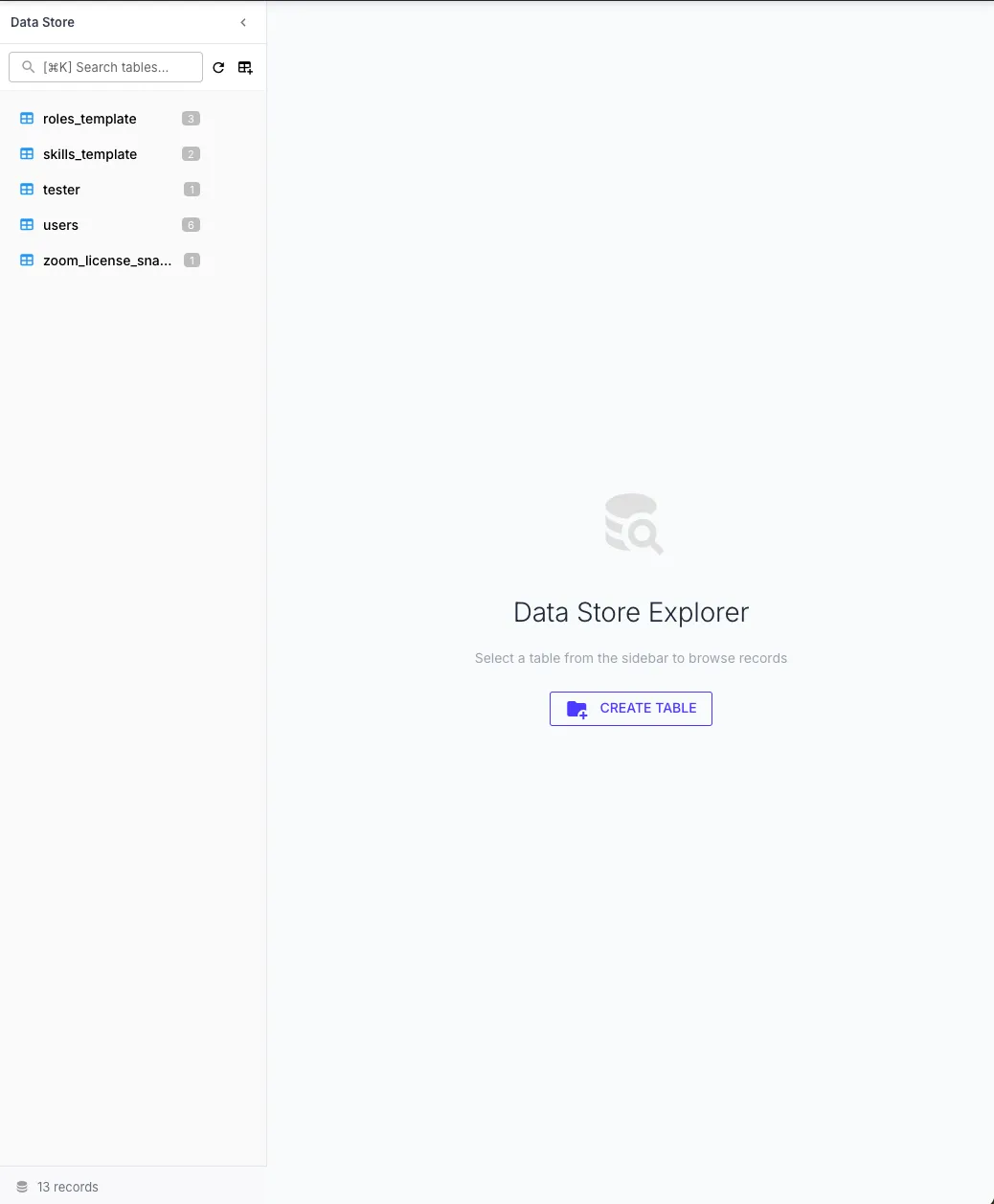
Section titled “Browsing Data in the UI”The Data Store page lets you browse, search, edit, and manage your data store entries directly from the QuickFlo UI.
Tables Sidebar
Section titled “Tables Sidebar”The left sidebar lists all tables in your organization with record counts. Use the search field at the top to filter tables by name. You can also create new tables or refresh the list from the toolbar icons.
Records Table
Section titled “Records Table”Selecting a table shows all its entries in a sortable table with Key, Created, and Updated columns. Each row has edit and delete action buttons. Click any row to open the detail panel.
Detail Panel
Section titled “Detail Panel”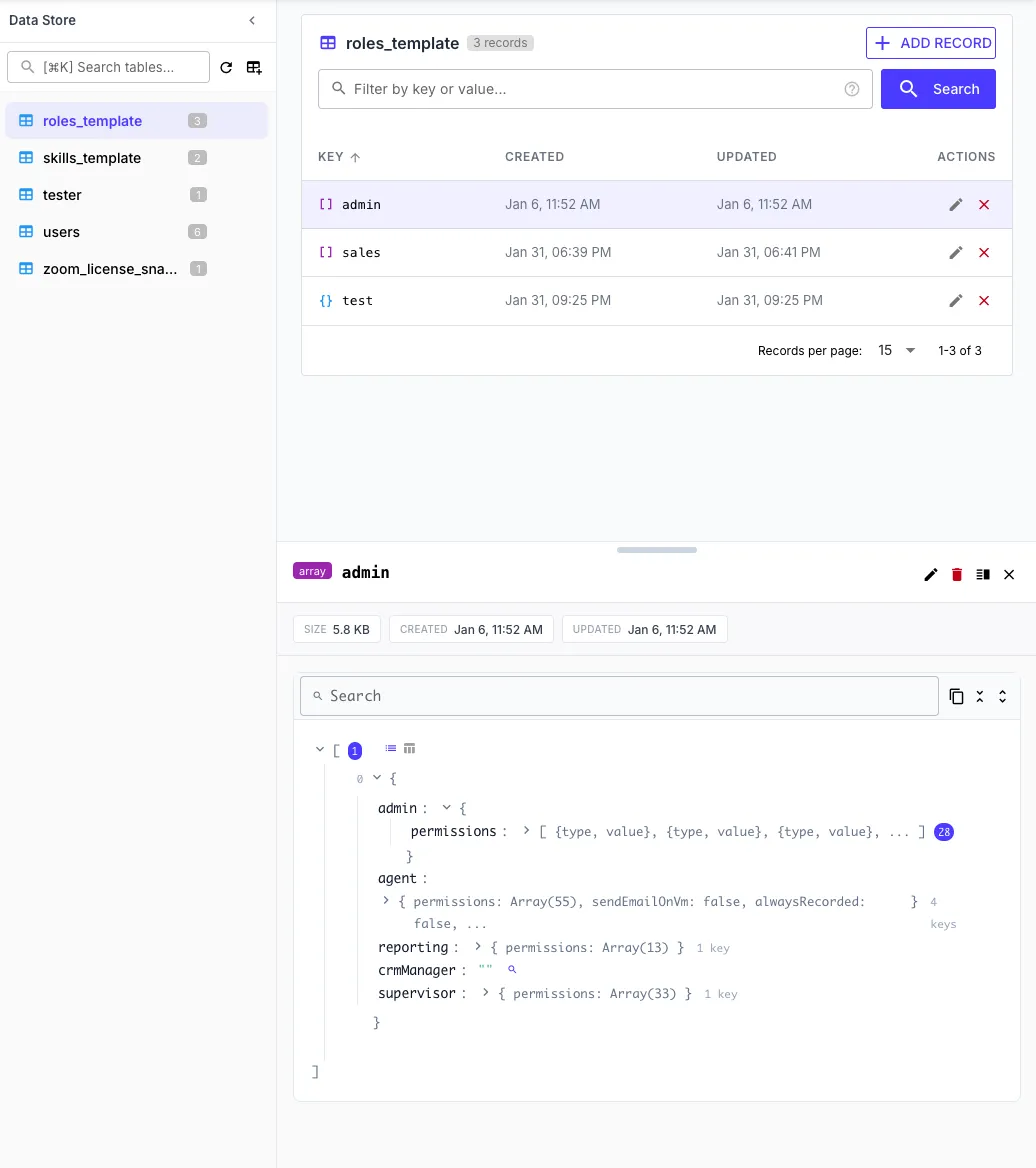
Clicking a record opens a detail panel showing:
- Metadata — size, created date, updated date, and expiry countdown (if set)
- Value preview — the full stored value with syntax highlighting and expandable tree view
- Clickable values — click any primitive value in the tree to quickly filter by it
From the detail panel you can edit, delete, or copy the key.
Searching and Filtering
Section titled “Searching and Filtering”The search bar supports two modes:
Key search — type any text to filter entries by key (case-insensitive contains match):
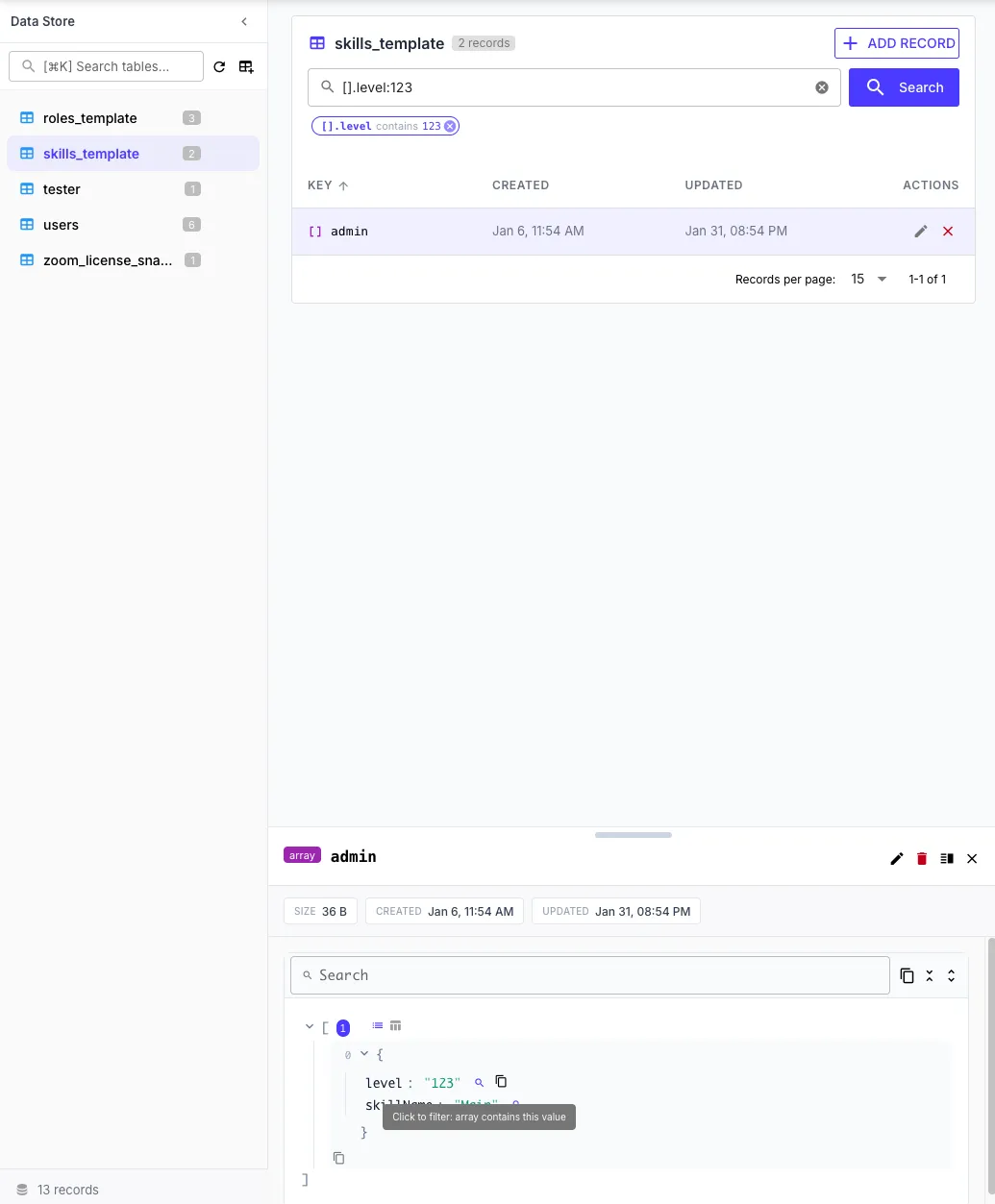
user-123Value search — use field:value syntax to filter by stored values. Click the Search button or press Enter to execute:
| Syntax | Description | Example |
|---|---|---|
field:value | Field contains value (partial match) | status:active |
field:=value | Field equals value (exact match) | email:=john@example.com |
field:!value | Field does not contain value | status:!deleted |
field:!=value | Field does not equal value | status:!=inactive |
[].field:value | Array element field contains value | [].level:123 |
field[]:value | Array field contains primitive value | tags[]:important |
Active filters appear as badges below the search bar that you can dismiss individually.
Editing Records
Section titled “Editing Records”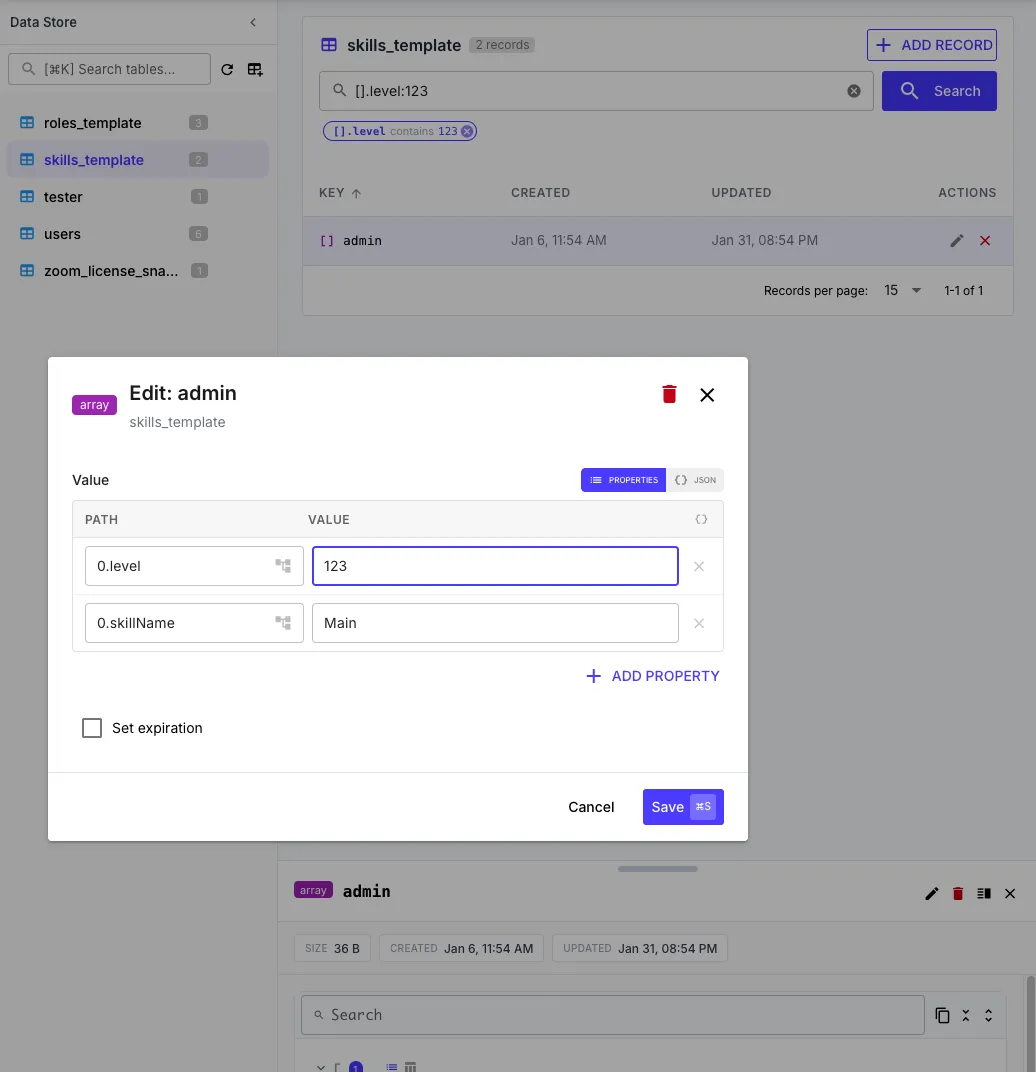
Click the edit icon on any record (or from the detail panel) to open the edit dialog. The editor supports two modes:
- Properties mode — visual path/value pairs with an “Add Property” button
- JSON mode — raw JSON editor for complex values
You can also toggle Set expiration to add or remove a TTL on the entry.
Export and Import
Section titled “Export and Import”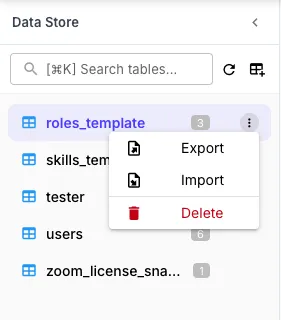
Export
Section titled “Export”Export an entire table as a JSON file from the table toolbar. The export contains an array of key-value objects.
Import
Section titled “Import”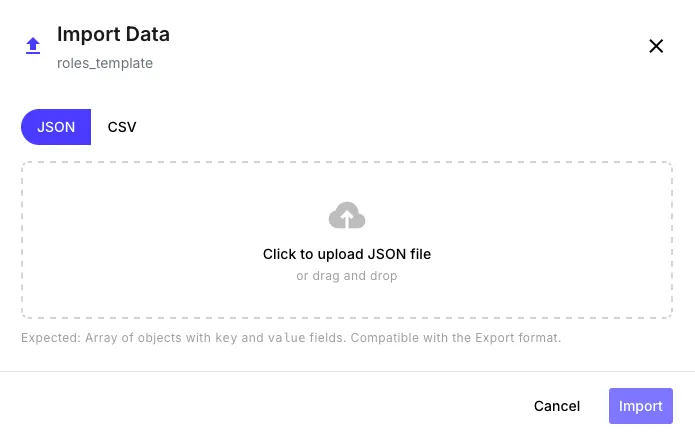
Import data from JSON or CSV files into a table. The import dialog supports drag-and-drop file upload and shows a preview of entries before importing. Existing keys are updated (upsert) and new keys are created.
Limits
Section titled “Limits”| Limit | Value |
|---|---|
| Key length | 1,024 characters |
| Table name length | 255 characters |
| Minimum TTL | 1 minute |
| Maximum TTL | No expiration (entries persist indefinitely) |
| Default TTL (when expiration enabled) | 30 days |
| Query limit per request | 1,000 entries |
| Bulk import per request | 50,000 entries |