
Calculated fields
A calculated field produces one value per record. Once saved, it behaves like any other field in widgets and filters.
Calculated Fields
Section titled “Calculated Fields”Sometimes you need a value that doesn’t live in your raw data — a margin computed from cost and revenue, a duration from two timestamps, a category derived from a string match. Calculated fields let you define these as formula expressions on the data source, and QuickFlo evaluates them when the widget runs.
The CalculatedField builder gives you:
- A formula editor with syntax highlighting
- Reference pills — click any existing field to insert it into the formula
- Quick-start templates for common patterns (margin %, duration in seconds, conditional bucketing)
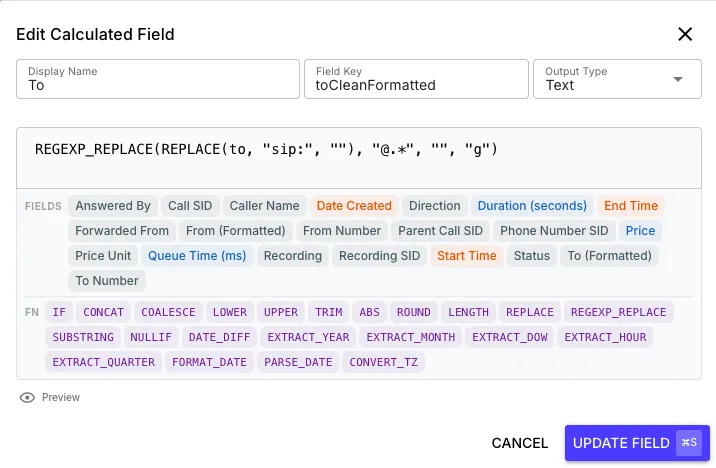
Once defined, the calculated field appears in the widget builder alongside native fields. You can use it as a measure, dimension, or filter just like any other column.
Writing a formula
Section titled “Writing a formula”A formula is a single expression that produces one value per row. Reference a field by its field key, combine fields with operators, and wrap values in functions. Click any pill in the builder to insert a field at the cursor (recommended, so you never have to guess the exact key).
Field keys that are plain words can be written as-is (revenue, totalField). Keys that contain spaces, start with a number, or include punctuation (common with imported report columns like 3RD PARTY TALK TIME or BILL TIME (ROUNDED)) must be wrapped in square brackets:
// bracket any key with spaces, a leading digit, or symbols([3RD PARTY TALK TIME] / [TOTAL HANDLE TIME]) * 100
// plain-word keys need no brackets(revenue - cost) / revenue * 100
// arithmetic — divide-by-zero is guarded automatically(revenue - cost) / revenue * 100
// conditional — IF(condition, then, else) or a ? b : c ternaryIF(talkTime > 300, "Long", "Short")
// text — join fields and literalsCONCAT(firstName, " ", lastName)
// dates — difference in a unit, or pull out a partDATE_DIFF(callStart, callEnd, "minutes")EXTRACT_HOUR(timestamp)
// fallbacks — first non-null valueCOALESCE(dispositionCode, "Unknown")
// membership — true when the value matches any optionIN(DISPOSITION, "Sale", "Callback", "Interested")Operators: arithmetic + - * /; comparison == != < > <= >=; boolean AND OR NOT; and a ternary condition ? then : else. For membership (“is the value one of these?”) use the IN(value, ...) function in the reference below, negated with NOT IN(...). Division by zero resolves to null rather than erroring. String literals use single or double quotes.
The expression syntax follows familiar JavaScript-style operators, but only the operators and functions listed here are permitted. Anything else is rejected at save time with a specific error.
Extracting a value from JSON
Section titled “Extracting a value from JSON”Use JSON_VALUE(jsonField, path[, resultType]) to turn a value inside a JSON column into an ordinary calculated field. The source column must have schema type JSON. No customer-specific workflow changes are needed.
For example, Activity Sync can keep each customer’s Salesforce fields in the same fields column while each customer chooses their own formula:
JSON_VALUE(fields, "$.Disposition")JSON_VALUE(fields, "$.CallOutcome__c")JSON_VALUE(fields, "$.Campaign")Save the result as a Text calculated field named Disposition, then use it as a pie-chart dimension with Count, a table column, or a filter.
The default result is text. Supply a literal third argument for other types:
JSON_VALUE(fields, "$.Duration", "number")JSON_VALUE(fields, "$.Contacted", "boolean")JSON_VALUE(fields, "$.CompletedAt", "date")COALESCE(JSON_VALUE(fields, "$.Disposition"), "Unknown")- string: converts a scalar to text; preserves an empty string.
- number: accepts numbers and plain decimal numeric strings (such as
"12.5"), not booleans, commas, or exponent notation in strings. - boolean: accepts booleans and case-insensitive
"true"/"false"strings, not1,0, or"yes". - date: accepts valid ISO date/time values, such as
"2024-03-01"or"2024-03-01T12:30:00Z". It preserves the written clock time, not the timezone offset:"2024-03-01T12:30:00-05:00"becomes2024-03-01 12:30:00. Use UTC inputs when you need UTC instants. Impossible dates and invalid times return null.
Missing paths, JSON null, object/array results, and incompatible conversions return null. A malformed formula or unsupported path is rejected, not silently converted to null. Raw JSON still cannot be grouped, sorted, or used as a scalar formula argument outside JSON_VALUE.
Paths start with $ and follow object keys only. Dots mean nesting; quote a key when a dot, space, leading number, or other punctuation is part of its name:
// { "meta": { "CallOutcome__c": "Sale" } } → "Sale"JSON_VALUE(fields, "$.meta.CallOutcome__c")
// { "Campaign Name": { "result.code": "Spring" } } → "Spring"JSON_VALUE(fields, '$."Campaign Name"."result.code"')
// Both keys can coexist: { "contact": { "Disposition": "Sale" }, "contact.Disposition": "Callback" }JSON_VALUE(fields, "$.contact.Disposition")   // "Sale"JSON_VALUE(fields, '$."contact.Disposition"') // "Callback"
Unquoted keys contain letters, numbers, or underscores and cannot start with a number. The path and result type must be literal strings, not formulas. Array indexes ($.items[0]), wildcards ($.*), predicates, and recursive searches are not supported.
ClickHouse-backed sources reserve the literal sequence %2E in JSON key names for their internal dotted-key encoding. Rename keys containing that sequence before syncing; dots themselves are supported. Existing ClickHouse rows ingested before dotted-key preservation was enabled require a coordinated data repair before these distinctions are reliable. Changing a formula cannot recover original key boundaries or strings that ingestion already changed.
Data store references ($ds)
Section titled “Data store references ($ds)”A formula can pull a live value out of a data store with a $ds reference, resolved fresh every time the widget runs. This is the maintainable way to drive a formula off a list that changes: edit the list in the data store and every formula that references it follows — no dashboard edit required.
The canonical use is membership. Keep a maintained list of dispositions in a data store, then reference it inside IN(...):
// resolves to IN(DISPOSITION, 'Sale', 'Callback', 'Interested')// where the options come from the data store at query timeIN(DISPOSITION, $ds["sellable contacts store"]["sellable contacts"].dispositions)A $ds reference is positional — $ds.<table>.<key>.<path>:
- Table (first segment) — the data store table name.
- Key (second segment) — the entry key within that table.
- Path (any remaining segments) — walk into the entry’s stored JSON value.
Use the dot form for simple names and the quoted-bracket form for names with spaces or symbols (the two can be mixed):
$ds.stores.sellable.dispositions$ds["sellable contacts store"]["sellable contacts"].config.dispositionsWhat a reference can resolve to: a scalar (string, number, or boolean) or a flat list of scalars. A list expands into the IN(...) option list; a scalar behaves as a single option. Objects, nested arrays, and lists of objects are rejected — walk the path down to a flat value instead. An empty list is valid and compiles to “matches nothing”.
Access: a $ds reference reads exactly what you could read through the data store API — a table your organization owns, or one shared into your organization. Referencing a table you can’t access is rejected the same way a missing entry is, so nothing leaks about other organizations’ stores.
Failure semantics: a missing table or key, a path that doesn’t exist, or a value of the wrong shape is rejected at save time (so you catch it while authoring) and produces a loud widget error at query time — never a silent empty result. Very large lists are capped so a single reference can’t blow up a query.
The formula editor knows the syntax: type $ds and then . or [ and it drills down through your tables, keys, and value fields, inserting the correct dot or quoted-bracket spelling. $ds references work in both calculated fields and widget filter expressions.
Function reference
Section titled “Function reference”| Function | Signature | Notes |
|---|---|---|
JSON_VALUE | JSON_VALUE(jsonField, path[, resultType]) | Extract a scalar using an object-only $ path. Default type "string"; also "number", "boolean", or "date". Missing or incompatible values return null. |
IF | IF(condition, then[, else]) | Conditional. else defaults to null if omitted. |
IN | IN(value, a, b, ...) | True when value equals any listed option. Options can include a $ds list reference. Negate with NOT IN(...). |
COALESCE | COALESCE(a, b, ...) | First non-null argument. |
NULLIF | NULLIF(a, b) | Null when a == b, else a. |
CONCAT | CONCAT(a, b, ...) | Join values into one string. |
CONCAT_WS | CONCAT_WS(sep, a, b, ...) | Join with a separator. |
LOWER / UPPER | LOWER(text) | Change case. |
TRIM | TRIM(text) | Strip leading/trailing whitespace. |
LENGTH | LENGTH(text) | Character count. |
SUBSTRING | SUBSTRING(text, start, length) | Slice a string (1-indexed). |
REPLACE | REPLACE(text, search, replacement) | Literal find/replace. |
REGEXP_REPLACE | REGEXP_REPLACE(text, pattern, replacement, "g") | Regex replace. Flags: g global, i case-insensitive. |
ABS | ABS(number) | Absolute value. |
ROUND | ROUND(number, decimals) | Round to N decimals. |
FLOOR / CEIL | FLOOR(number) | Round down / up. |
DATE_DIFF | DATE_DIFF(start, end, unit) | Elapsed time. Unit: "seconds", "minutes", "hours", "days". |
EXTRACT_YEAR | EXTRACT_YEAR(date) | Year. |
EXTRACT_MONTH | EXTRACT_MONTH(date) | Month, 1-12. |
EXTRACT_DAY | EXTRACT_DAY(date) | Day of month. |
EXTRACT_DOW | EXTRACT_DOW(date) | Day of week, 0 = Sunday. |
EXTRACT_HOUR | EXTRACT_HOUR(date) | Hour, 0-23. |
EXTRACT_QUARTER | EXTRACT_QUARTER(date) | Quarter, 1-4. |
FORMAT_DATE | FORMAT_DATE(date, "YYYY-MM-DD") | Format a date to text using QuickFlo date patterns. |
PARSE_DATE | PARSE_DATE(text, "Dy, DD Mon YYYY HH24:MI:SS") | Parse text into a date using QuickFlo date patterns. |
CONVERT_TZ | CONVERT_TZ(date, "UTC", "America/New_York") | Convert between timezones (IANA names). |