
Return Step
The return step terminates workflow execution immediately and optionally sends a response back to the caller. All remaining steps after the return are skipped. The step editor changes its form fields based on the trigger type.
Webhook Response
Section titled “Webhook Response”When a workflow is triggered by a webhook, the return step controls what the webhook caller receives back as the HTTP response.
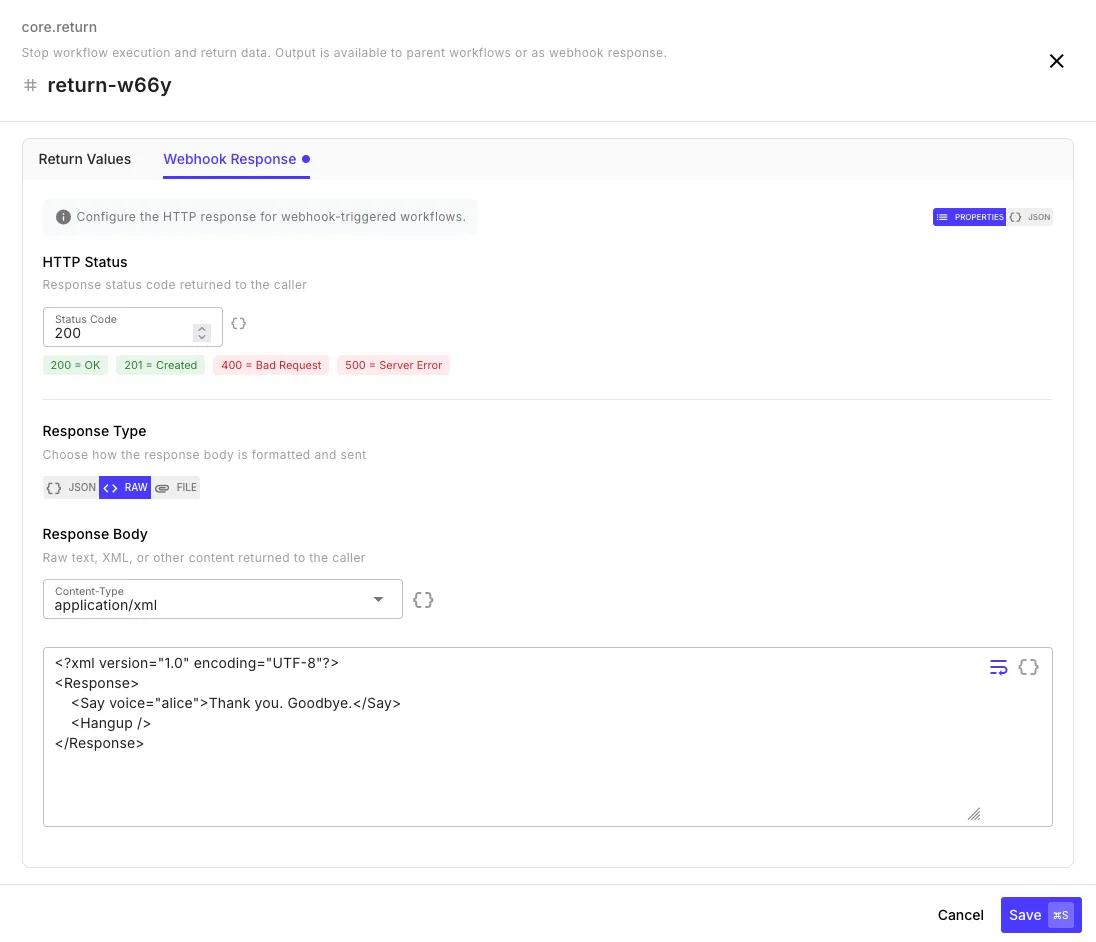
Basic response fields:
| Field | Value |
|---|---|
| Status Code | 201 |
| Body | { "success": true, "userId": "{{ create-user.id }}" } |
Advanced webhook response fields — for file downloads or non-JSON responses:
| Field | Description | Example |
|---|---|---|
| Status Code | HTTP status code to return | 200 |
| Body | Response body content | {{ generate-report.csv }} |
| Body Encoding | json, text, or base64 | text |
| Content Type | MIME type for the response | text/csv |
| Filename | If set, triggers a file download in the caller’s browser | report.csv |
Form Response
Section titled “Form Response”When triggered by a form, the return step controls what the submitter sees after submission.
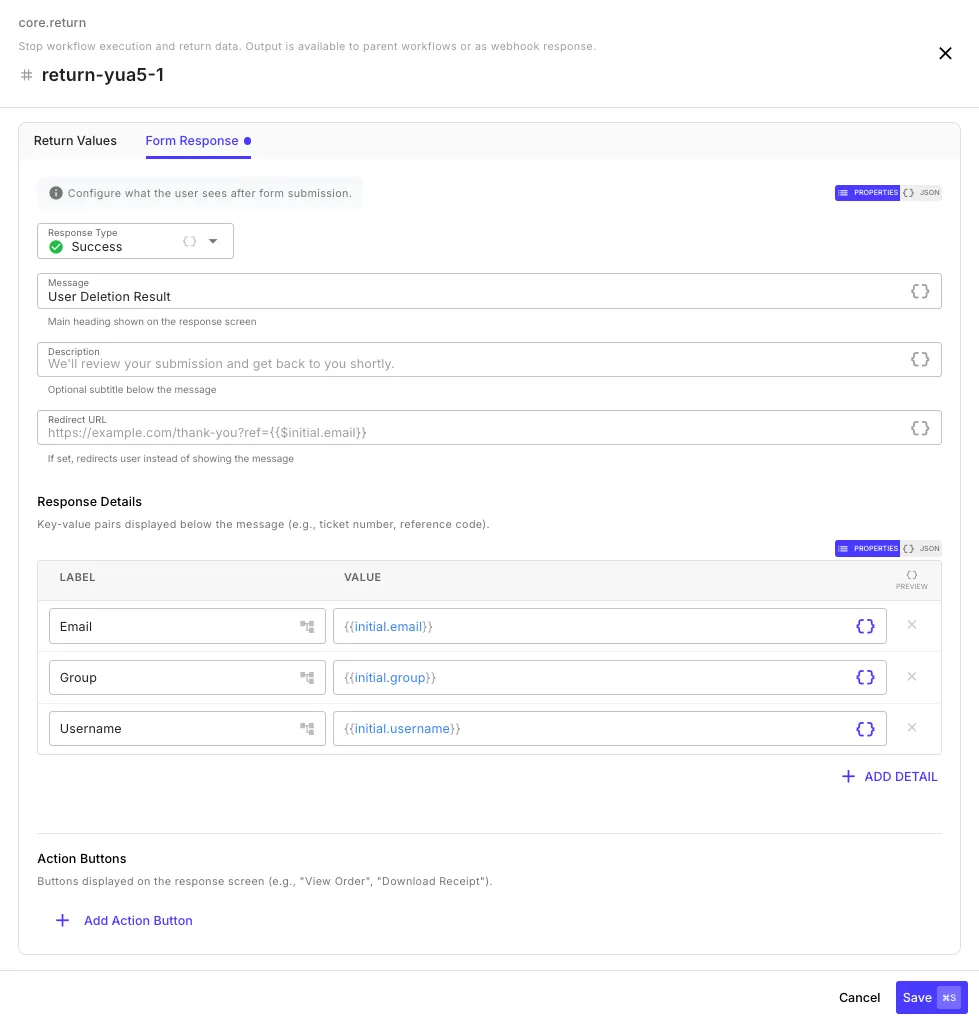
| Field | Description | Example |
|---|---|---|
| Message | Main heading shown to the user | Thanks for submitting! |
| Description | Optional subtitle | Your request has been received. |
| Type | success, error, warning, or info | success |
| Redirect URL | If set, redirects instead of showing a message | https://example.com/thank-you |
Sub-Workflow Return
Section titled “Sub-Workflow Return”When used inside a sub-workflow, the return step defines what the parent workflow receives as the step output. Add key-value pairs for each value to return:
| Key | Value |
|---|---|
userId | {{ user-check.id }} |
status | completed |
The parent workflow accesses these via the sub-workflow step ID:
{{ run-sub-workflow.userId }}{{ run-sub-workflow.status }}Conditional Returns
Section titled “Conditional Returns”Each step has a Skip If condition in its settings. You can use this to make a return step conditional — for example, returning a 404 early if a lookup fails, while letting the workflow continue if it succeeds.
Sync vs Async Execution
Section titled “Sync vs Async Execution”QuickFlo workflows can execute synchronously (wait for completion and return the result) or asynchronously (queue in the background and return immediately). The return step is what determines which mode is used.
How It’s Determined
Section titled “How It’s Determined”The default mode is auto, which decides based on the trigger type and whether a return step exists:
| Trigger | Has Return Step with Response? | Mode |
|---|---|---|
| Webhook | Yes (status code / body defined) | Sync — caller waits, gets return step output |
| Webhook | No | Async — caller gets 202 Accepted with executionId |
| Form | Yes (form response defined) | Sync — submitter sees the response |
| Form | No | Async — submitter sees a default success message |
| Schedule | N/A | Async always |
| Manual/API | N/A | Async by default |
Overriding the Mode
Section titled “Overriding the Mode”You can force sync or async execution regardless of auto-detection:
- Query parameter:
?mode=syncor?mode=asyncon the webhook/execution URL - Workflow settings: Set the execution mode to
syncorasyncin the workflow settings dialog
What the Caller Receives
Section titled “What the Caller Receives”Synchronous — The caller gets exactly what the return step defines, with the status code you set (default 200).
Asynchronous — The caller gets a 202 Accepted response with an executionId that can be used to check status later.