
Working with Files
QuickFlo provides a full set of file operations for reading, writing, downloading, and managing files in your workflows. Every file step supports both managed storage (zero-config, hosted by QuickFlo) and bring-your-own cloud storage providers.
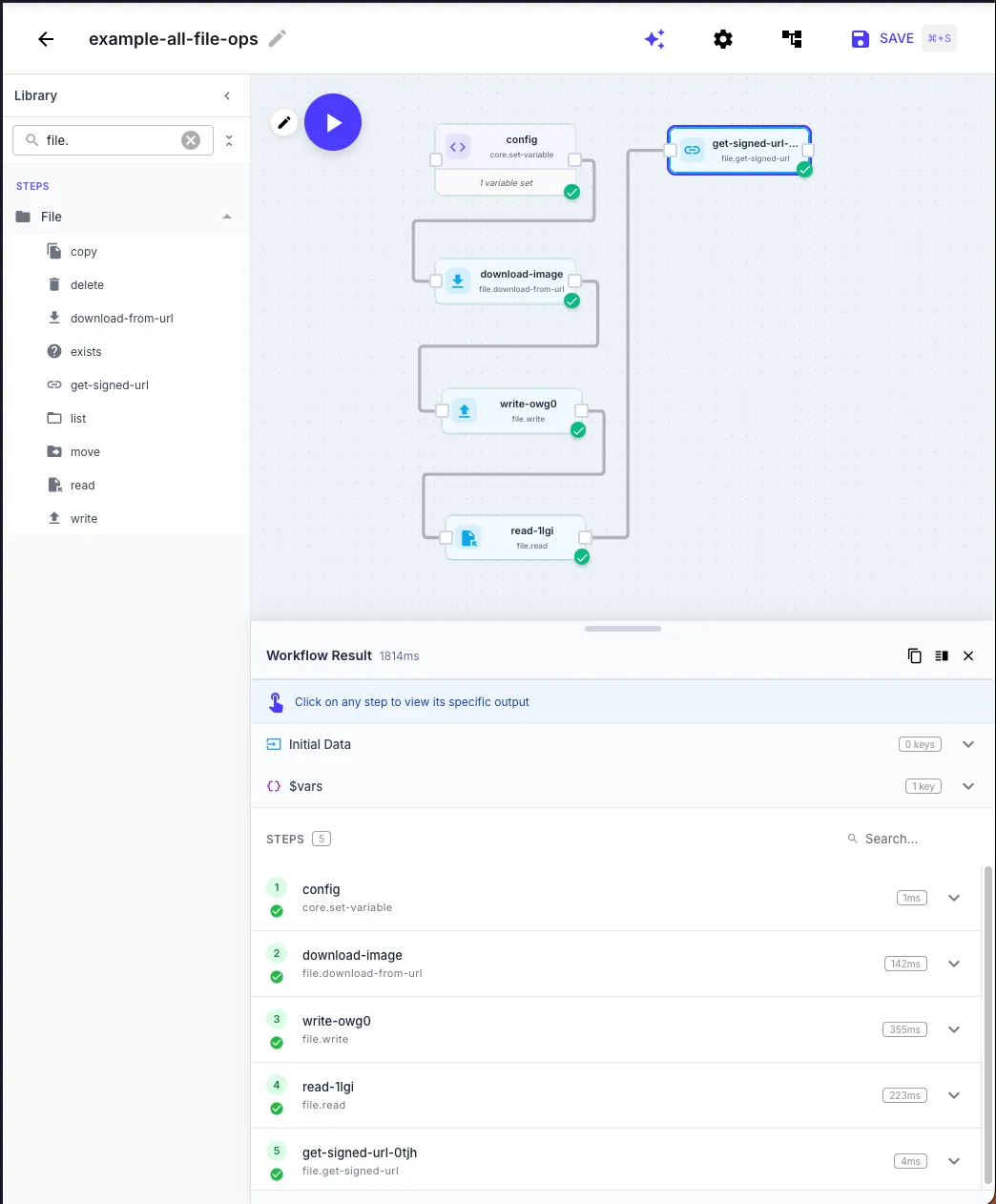
Available File Steps
Section titled “Available File Steps”| Step | What it does |
|---|---|
| file.write | Write content to a file in cloud storage |
| file.read | Read a file’s content from cloud storage |
| file.download-from-url | Download a file from an HTTP(S) URL |
| file.delete | Delete a file from cloud storage |
| file.copy | Copy a file to a new path |
| file.move | Move a file to a new path |
| file.list | List files in a storage directory |
| file.exists | Check whether a file exists at a given path |
| file.get-signed-url | Generate a temporary signed URL for secure file access |
Storage Options
Section titled “Storage Options”Every file step that interacts with cloud storage includes a Storage section with four tabs:
Managed Storage
Section titled “Managed Storage”The default option. Files are stored in QuickFlo’s hosted storage, scoped to your organization. No configuration needed — just provide a file path and QuickFlo handles the rest.
Managed storage paths are relative to your organization’s namespace. For example, writing to reports/monthly.csv stores the file at an organization-scoped path that only your workflows can access.
Google Cloud Storage
Section titled “Google Cloud Storage”Connect your own GCS bucket. Provide a service account key and reference files using gs:// URLs (e.g., gs://my-bucket/data/file.csv).
Amazon S3
Section titled “Amazon S3”Connect any S3-compatible storage — AWS S3, Cloudflare R2, MinIO, and others. Provide an access key, secret key, region, and bucket. Reference files using s3:// URLs.
Connect to an SFTP server for file operations. Provide host, port, username, and authentication credentials. Reference files using sftp:// URLs.
Writing Files
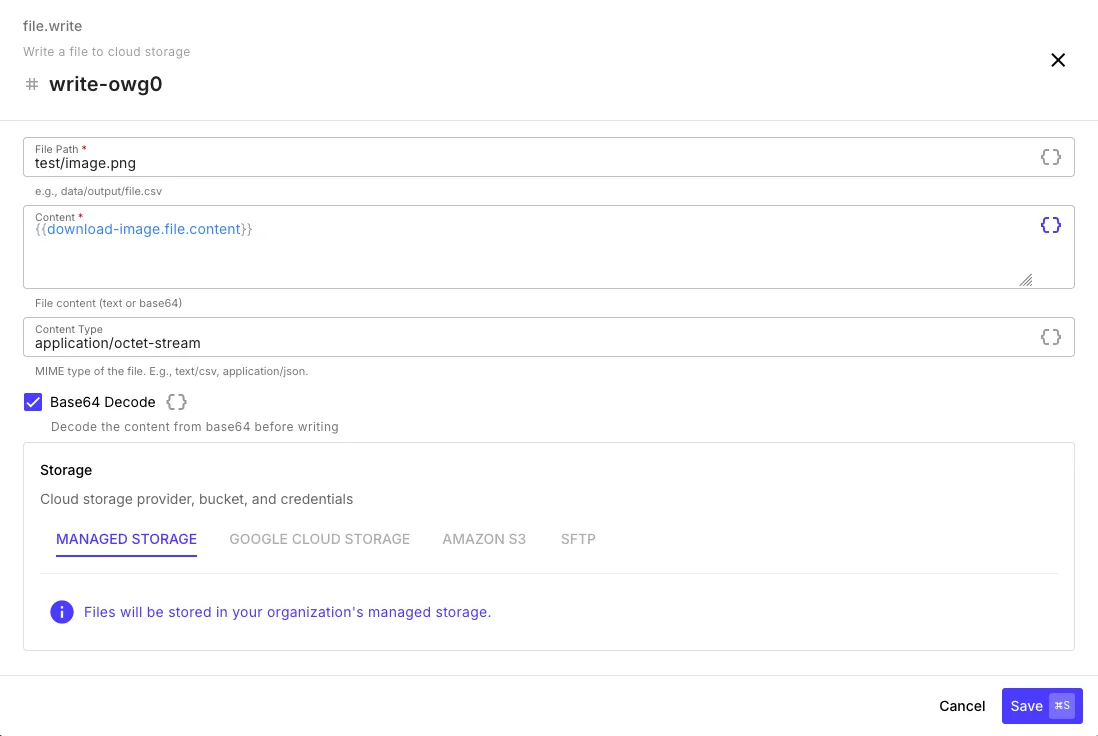
Section titled “Writing Files”The file.write step saves content to cloud storage.
| Field | Description |
|---|---|
| File Path | Where to store the file (e.g., data/output/report.csv) |
| Content | The file content — use templates to pass data from previous steps |
| Content Type | MIME type of the file (e.g., text/csv, application/json) |
| Base64 Decode | Enable when the content is base64-encoded (e.g., binary files from an API response) |
Reading Files
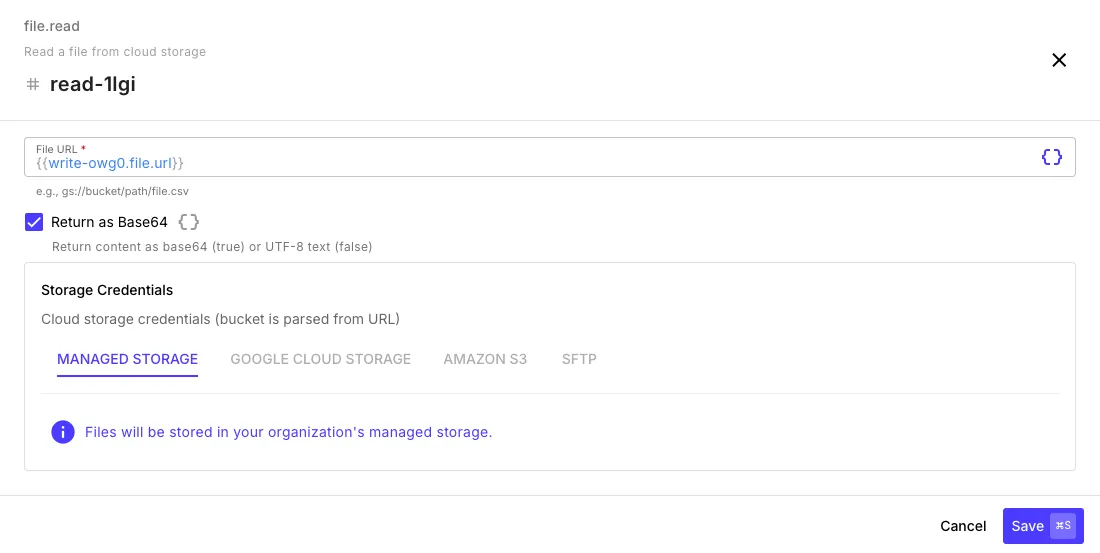
Section titled “Reading Files”The file.read step retrieves a file’s content from cloud storage.
| Field | Description |
|---|---|
| File URL | The storage URL of the file — use the url from a previous write step’s output (e.g., {{ write-step.file.url }}) |
| Return as Base64 | Return content as base64 instead of UTF-8 text — use this for binary files like images or PDFs |
Downloading from a URL
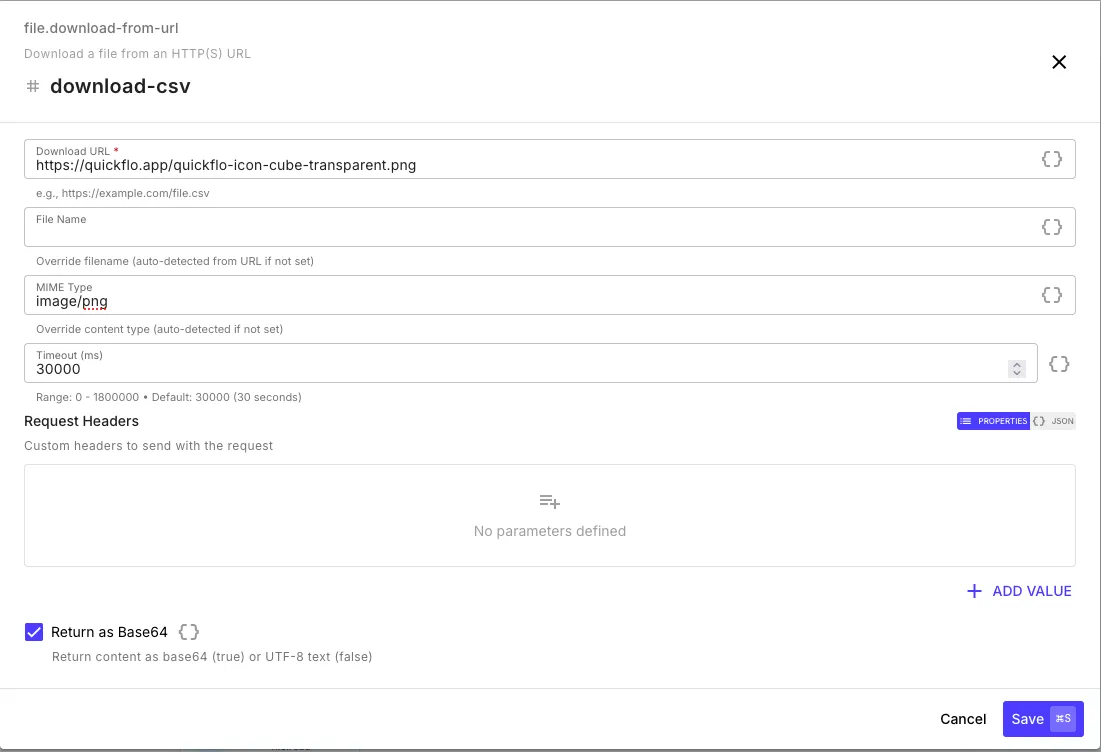
Section titled “Downloading from a URL”The file.download-from-url step fetches a file from any public HTTP(S) URL and returns it as a file object you can pass to other steps.
| Field | Description |
|---|---|
| Download URL | The HTTP(S) URL to download from |
| File Name | Override the auto-detected filename |
| MIME Type | Override the auto-detected content type |
| Timeout | Max wait time in milliseconds (default: 30,000) |
| Request Headers | Custom headers to send with the download request (e.g., auth tokens) |
| Return as Base64 | Return the downloaded content as base64 |
Generating Signed URLs
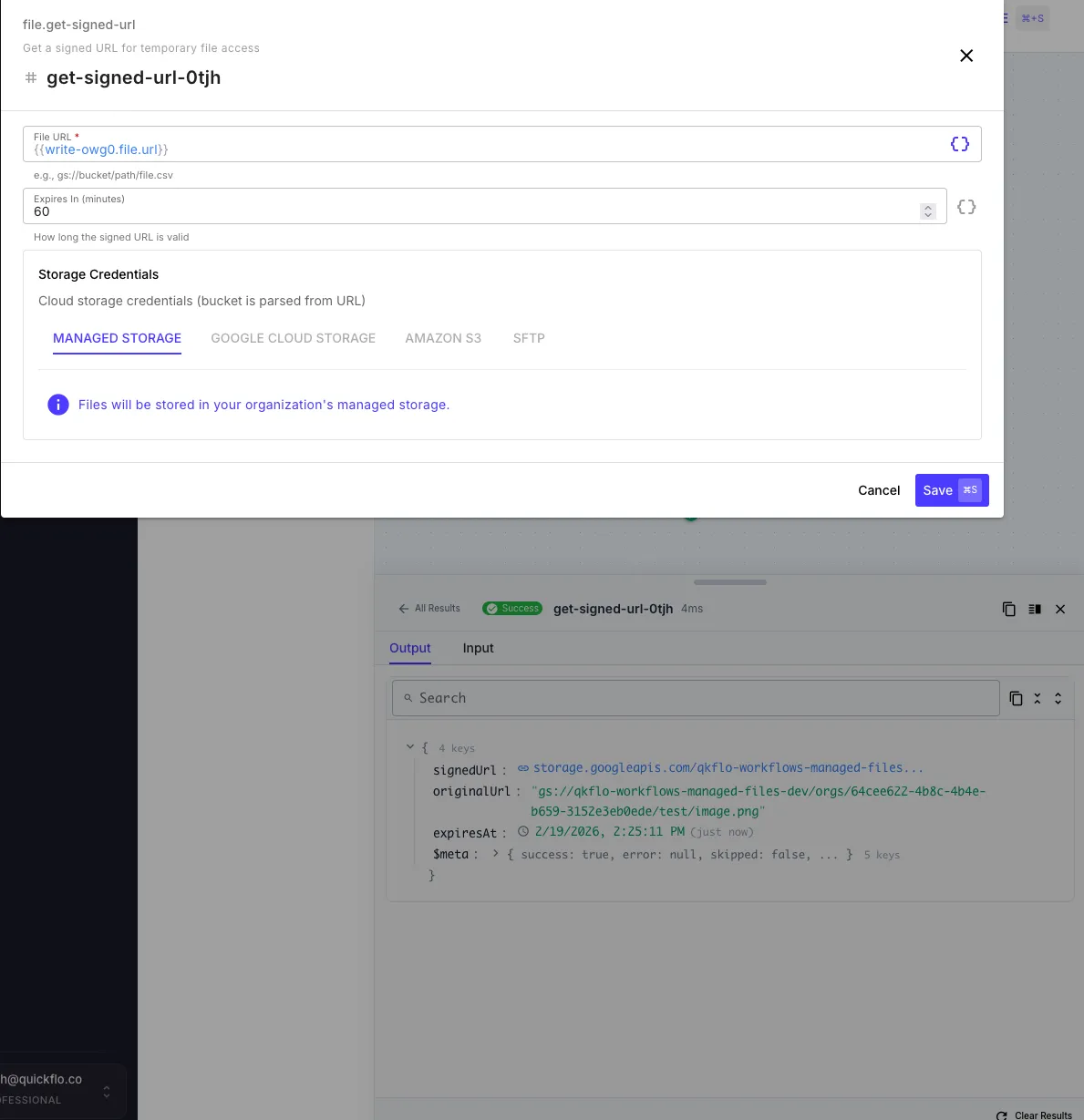
Section titled “Generating Signed URLs”The file.get-signed-url step creates a temporary, pre-authenticated URL for accessing a file without exposing your storage credentials.
| Field | Description |
|---|---|
| File URL | The storage URL of the file |
| Expires In | How long the signed URL remains valid (in minutes, default: 60) |
Output:
{{ get-signed-url-step.signedUrl }} // Temporary public URL{{ get-signed-url-step.originalUrl }} // Original storage URL (gs://, s3://, etc.){{ get-signed-url-step.expiresAt }} // Expiration timestampFile Object Output
Section titled “File Object Output”Steps that produce files (download-from-url, read, write) return a file object with metadata you can reference in later steps:
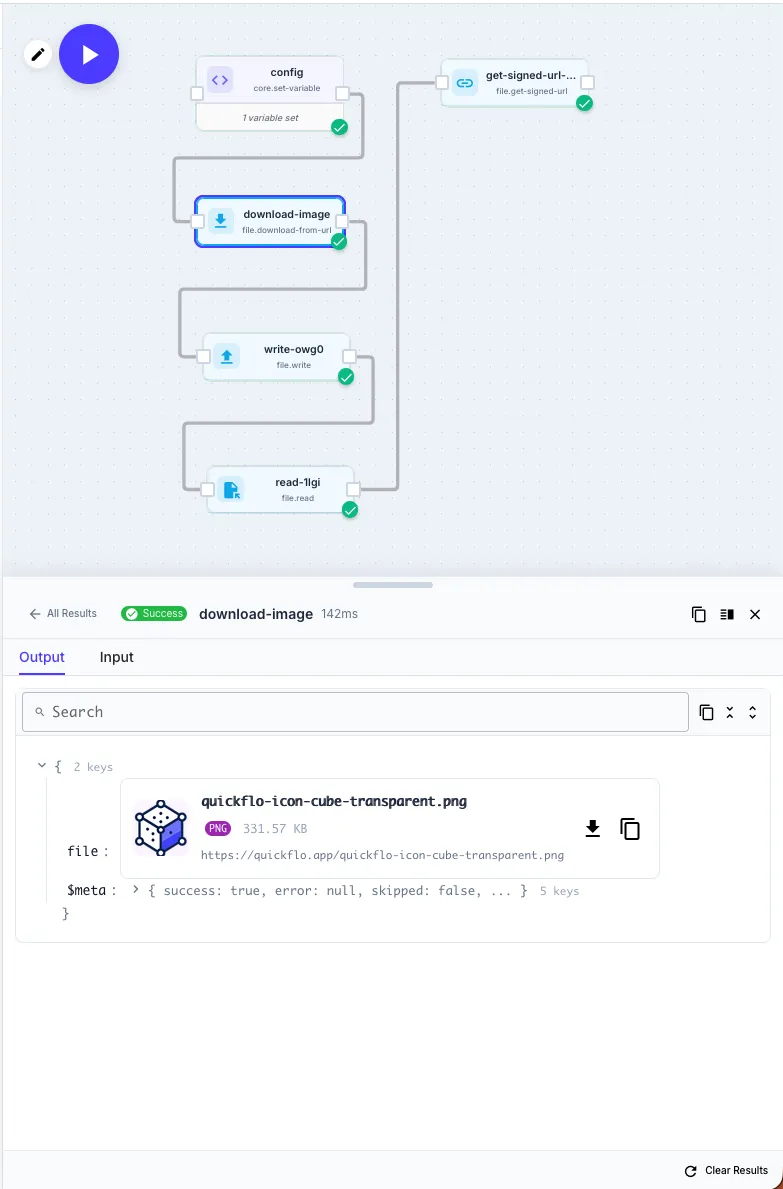
{{ download-step.file.filename }} // e.g., "report.csv"{{ download-step.file.content }} // File content (text or base64){{ download-step.file.mimeType }} // e.g., "text/csv"{{ download-step.file.size }} // File size in bytes{{ download-step.file.url }} // Source URLCommon Patterns
Section titled “Common Patterns”Download and store a file
Section titled “Download and store a file”Download a file from an external API, then write it to managed storage:
Step 1 (file.download-from-url): Download from https://api.example.com/export.csvStep 2 (file.write): Path = exports/{{ initial.date }}.csv Content = {{ download-step.file.content }}Generate a download link
Section titled “Generate a download link”Write a file to storage, then create a signed URL to return to the caller:
Step 1 (file.write): Path = reports/{{ initial.reportId }}.pdfStep 2 (file.get-signed-url): File URL = {{ write-step.file.url }}Step 3 (return): Body = { "downloadUrl": "{{ get-signed-url-step.signedUrl }}" }Read, transform, and re-write
Section titled “Read, transform, and re-write”Read a file, process its content with a data step, then write the result back:
Step 1 (file.read): File URL = gs://my-bucket/raw/data.jsonStep 2 (data.map): Transform the parsed contentStep 3 (file.write): Path = processed/data.json, Content = {{ map-step.output }}