
Audio Steps
QuickFlo includes five audio processing steps powered by FFmpeg. Convert between formats, trim by time or silence, merge multiple files, extract audio from video, and probe metadata — all without external services or custom code.
Audio sources can come from managed storage, GCS, S3, or SFTP, or be passed as base64 data from a previous step.
Audio Convert
Section titled “Audio Convert”Convert audio between formats with optional sample rate, channel, and bitrate adjustments.
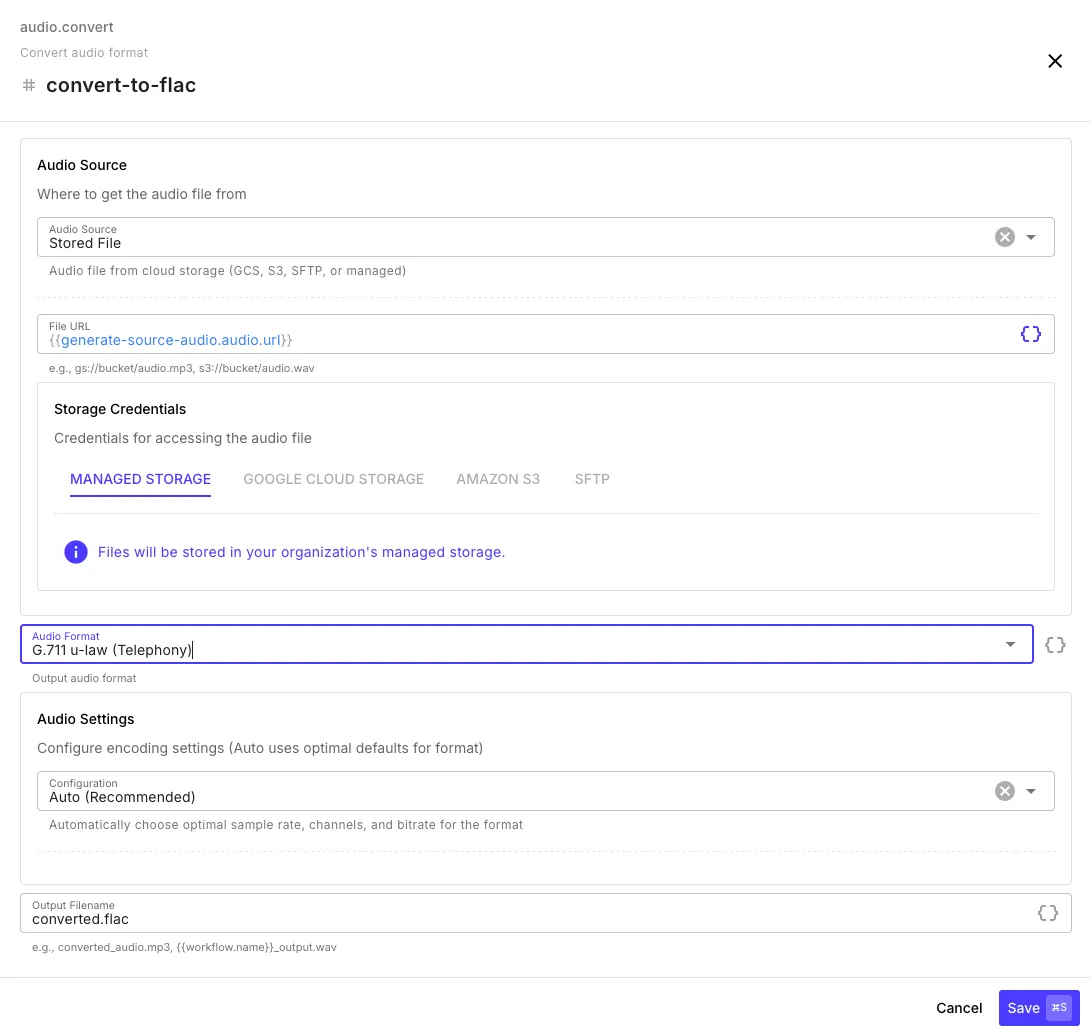
| Field | Description |
|---|---|
| Audio Source | Stored file URL or base64 data |
| Audio Format | Target format (see supported formats below) |
| Configuration | Auto (recommended) or manual sample rate, channels, and bitrate |
| Output Filename | Custom filename — supports templates like {{workflow.name}}_output.wav |
Auto mode selects optimal settings per format. Switch to Manual to override sample rate (8–48 kHz), channels (mono/stereo), and bitrate (64–320 kbps).
Supported Formats
Section titled “Supported Formats”| Format | Use case |
|---|---|
| MP3 | General purpose, widely compatible |
| WAV | Uncompressed, lossless |
| FLAC | Lossless compression |
| OGG Vorbis | Open format, good compression |
| AAC | Apple/iTunes compatible |
| M4A | Apple audio (MP4 container) |
| Opus | Modern codec, excellent quality/compression ratio |
| WebM | Web standard |
| G.711 u-law | Telephony standard (8 kHz mono) |
| G.711 A-law | Telephony standard (8 kHz mono) |
Audio Trim
Section titled “Audio Trim”Trim audio by time range or by detecting and removing silence.
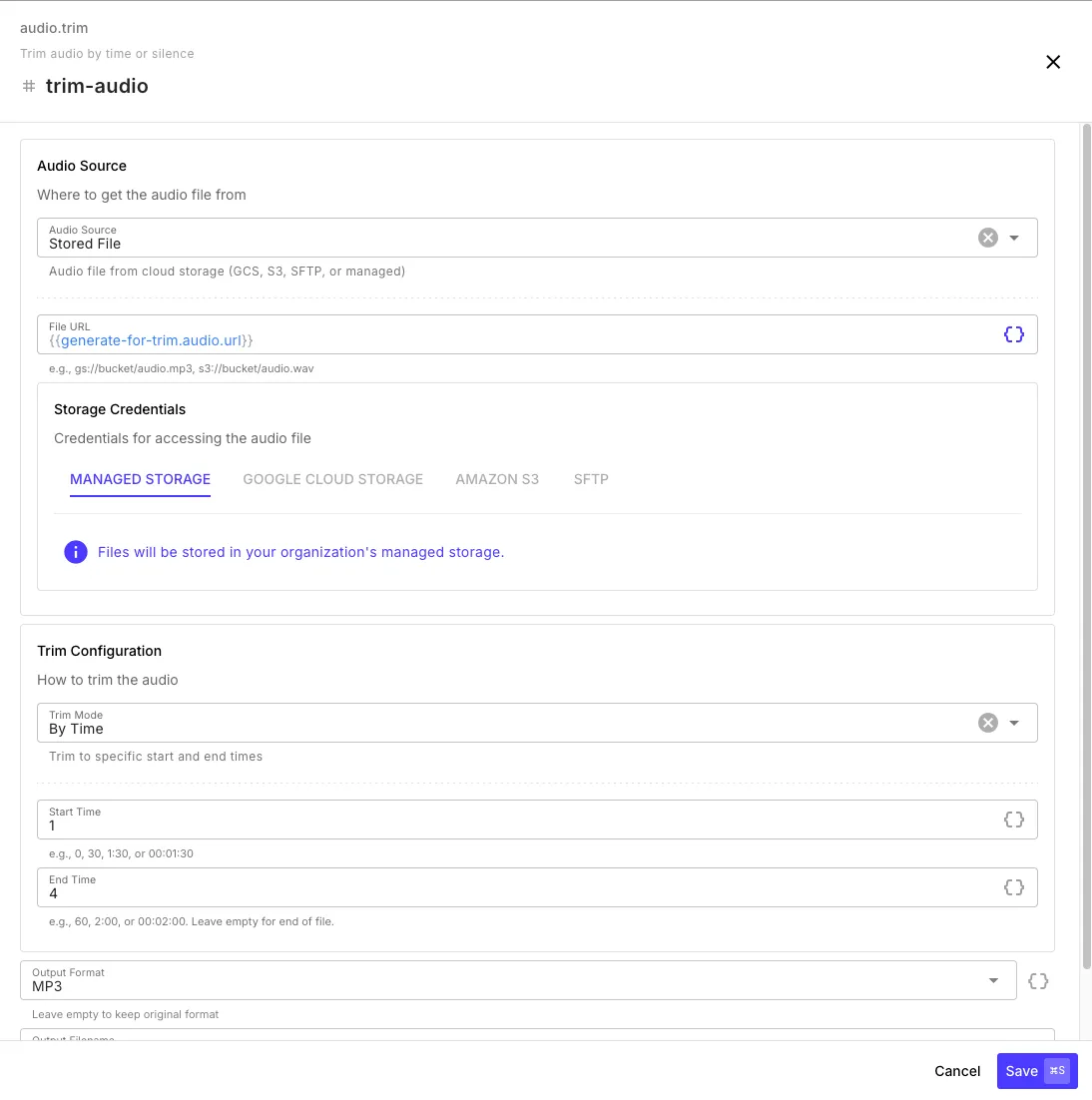
By Time
Section titled “By Time”| Field | Description |
|---|---|
| Start Time | Where to begin — seconds (30), MM:SS (1:30), or HH:MM:SS (00:01:30) |
| End Time | Where to stop — leave empty for end of file |
| Output Format | Leave empty to keep the original format |
By Silence
Section titled “By Silence”Automatically detect and remove silent regions from the beginning and/or end of the audio.
| Field | Description |
|---|---|
| Threshold | Silence sensitivity in dB (-50 recommended) |
| Min Duration | How long silence must last to be trimmed (1 second recommended) |
| Trim Start / End | Choose which sides to trim |
The step output includes originalDurationMs and trimmedStartMs / trimmedEndMs so you can see exactly what was removed.
Audio Merge
Section titled “Audio Merge”Combine multiple audio files by concatenation (sequential) or mixing (overlay).
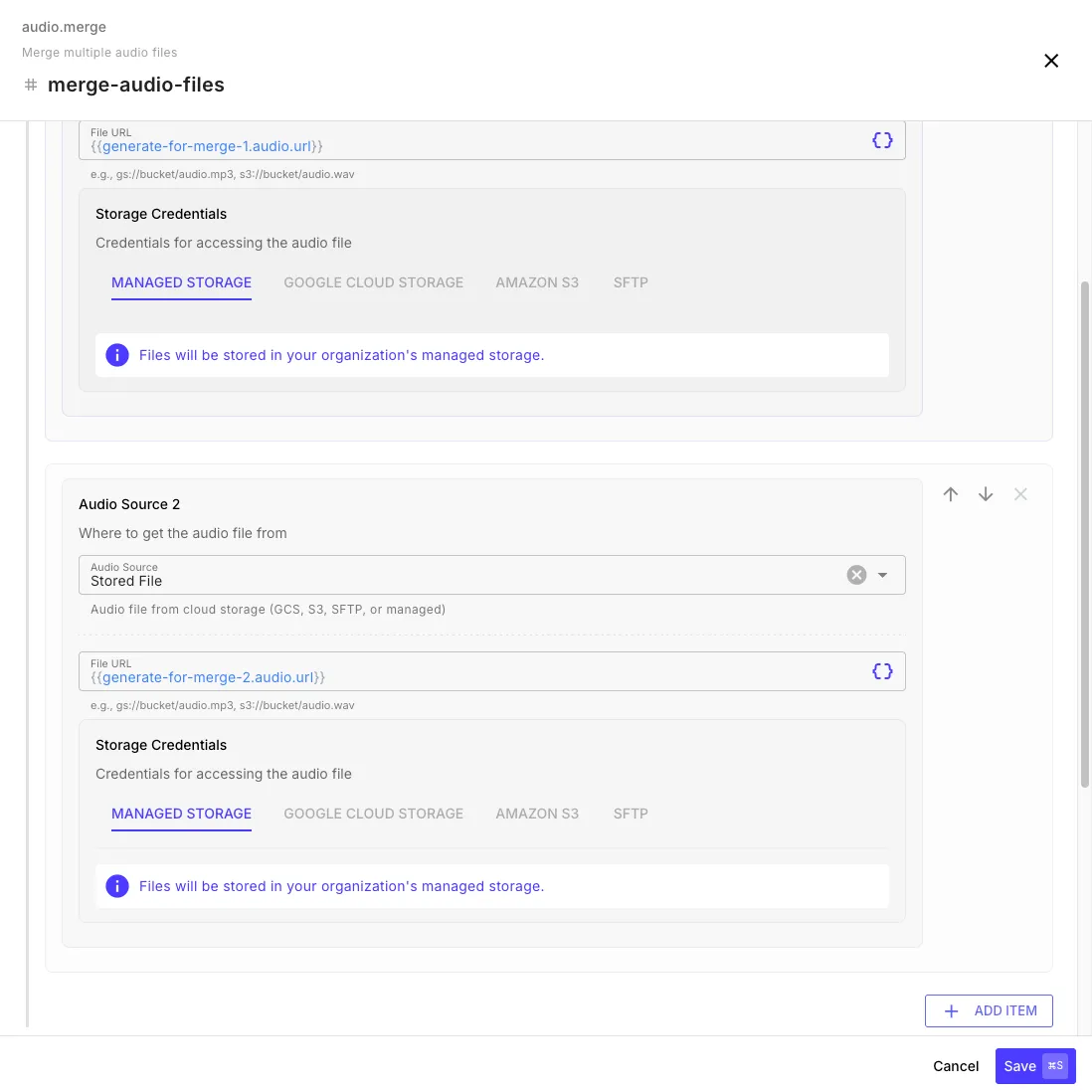
| Field | Description |
|---|---|
| Audio Files | Two or more audio sources (click Add Item for more) |
| Mode | Concatenate (play in sequence) or Mix (overlay simultaneously) |
| Output Format | Target format for the merged output |
| Configuration | Auto or manual sample rate and channels |
Concatenate plays files one after another — output duration is the sum of all inputs. Mix overlays all files at the same time — output duration matches the longest input.
Audio Extract
Section titled “Audio Extract”Extract the audio track from a video file. Supports MP4, MKV, WebM, AVI, MOV, WMV, and FLV.
| Field | Description |
|---|---|
| Video Source | Video file URL (managed, GCS, S3, or HTTP) |
| Output Format | Audio format for the extracted track |
| Configuration | Auto or manual encoding settings |
Audio Probe
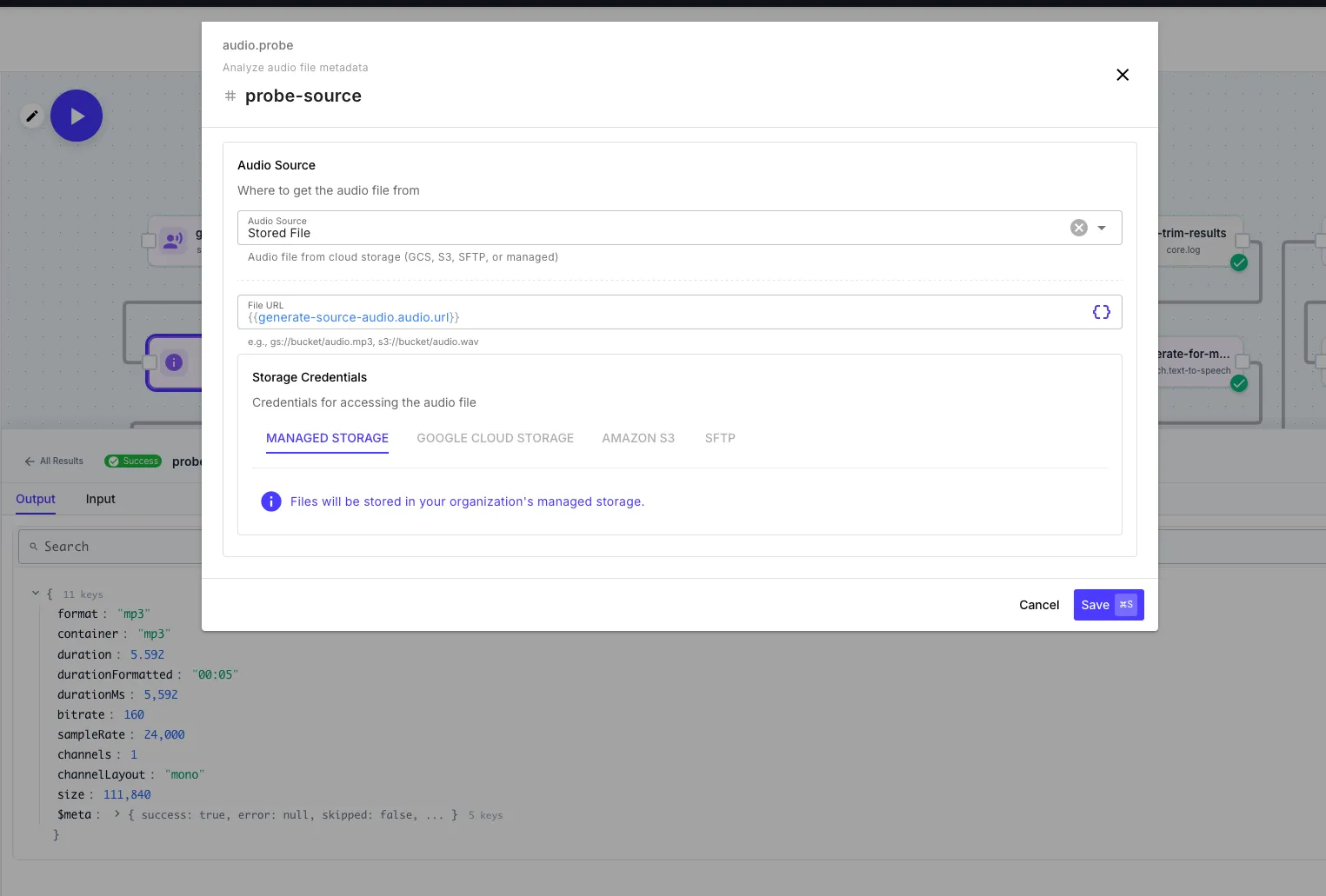
Section titled “Audio Probe”Analyze an audio file’s metadata without processing it. Returns format, duration, sample rate, channels, bitrate, and file size.
Output Fields
Section titled “Output Fields”| Field | Description |
|---|---|
format | Audio codec (e.g., mp3, aac, pcm_s16le) |
container | Container format (e.g., mp3, wav, m4a) |
duration | Duration in seconds |
durationFormatted | Duration as HH:MM:SS |
bitrate | Bitrate in kbps |
sampleRate | Sample rate in Hz |
channels | Number of channels (1 = mono, 2 = stereo) |
size | File size in bytes |
Step Output
Section titled “Step Output”All audio processing steps (except Probe) return an audio object:
{ "audio": { "url": "gs://your-org/audio/converted_abc123.mp3", "filename": "converted_abc123.mp3", "format": "mp3", "size": 245760 }, "durationMs": 5392}Reference the output URL in later steps:
{{ audio-convert.audio.url }}