
AI Steps
QuickFlo includes two AI step types that bring large language models directly into your workflows. Use them to generate text, extract structured data, classify content, summarize documents, or run autonomous agents that call other workflows as tools.
Both steps support multiple AI providers — Anthropic (Claude), OpenAI (GPT), and Google (Gemini) — so you can choose the model that best fits your use case and swap between them without changing your workflow logic.
LLM Call
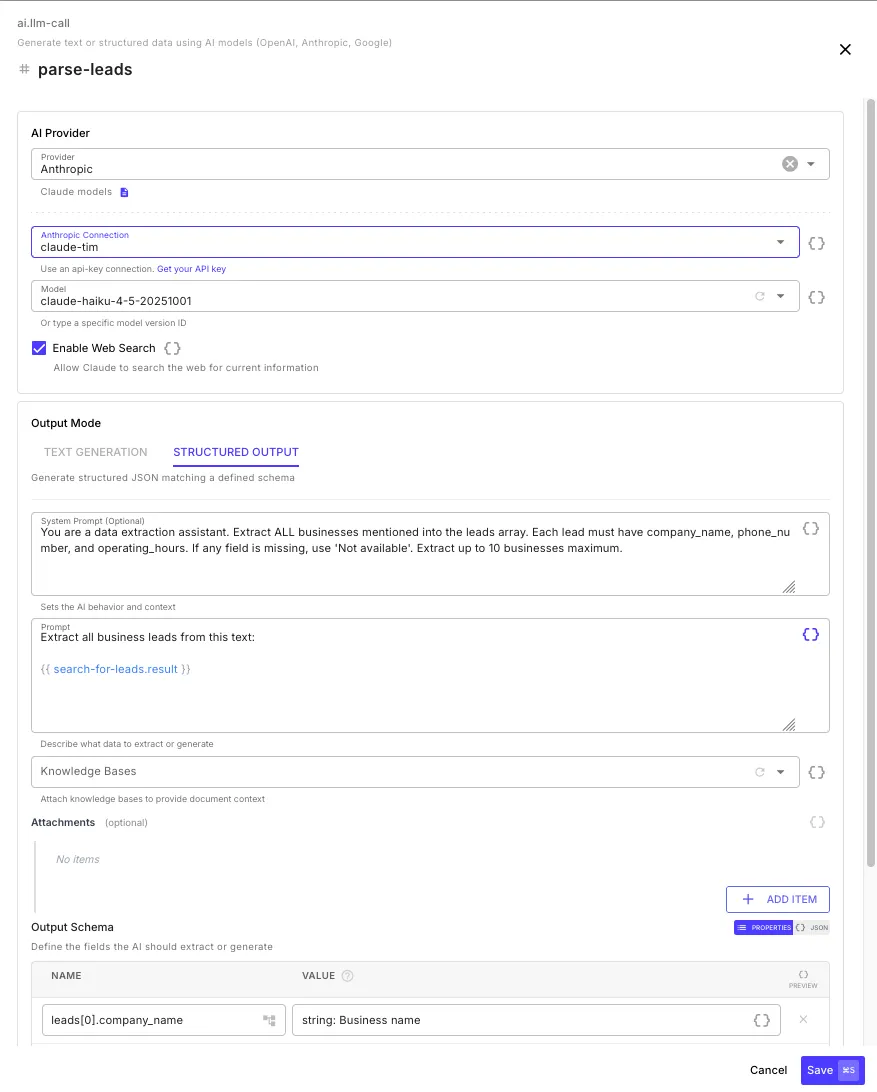
Section titled “LLM Call”The LLM Call step (ai.llm-call) sends a prompt to an AI model and returns the response. It supports two output modes: text generation for freeform responses, and structured output for extracting typed JSON that matches a schema you define.
Configuration
Section titled “Configuration”AI Provider
Section titled “AI Provider”| Field | Description |
|---|---|
| Provider | Anthropic, OpenAI, or Google |
| Connection | An API key connection for the selected provider |
| Model | Select from the dropdown or type a specific model version ID |
| Enable Web Search | Allow the model to search the web for current information (Anthropic and Google only) |
Prompt
Section titled “Prompt”| Field | Description |
|---|---|
| System Prompt | Sets the AI’s behavior and context — define a persona, rules, or formatting instructions (optional) |
| Prompt | The user message sent to the model — describe what you want generated or extracted. Supports template expressions. |
Knowledge Bases
Section titled “Knowledge Bases”Select one or more knowledge bases to provide document context. When selected, QuickFlo searches the knowledge bases using the prompt text and injects the most relevant chunks into the model’s context — giving the AI access to your specific documents (RAG).
Attachments
Section titled “Attachments”Add images or documents for the model to analyze. Each attachment can be a URL, base64-encoded content, or a data URI. Supported formats include PNG, JPEG, GIF, WebP, PDF, and more.
Output Modes
Section titled “Output Modes”Text Generation
Section titled “Text Generation”The default mode — the model generates a freeform text response. Use this for summarization, content generation, classification, question answering, or any task where you want natural language output.
Structured Output
Section titled “Structured Output”Generate typed JSON matching a schema you define. The model is constrained to return data in exactly the structure you specify — no parsing or cleanup needed.
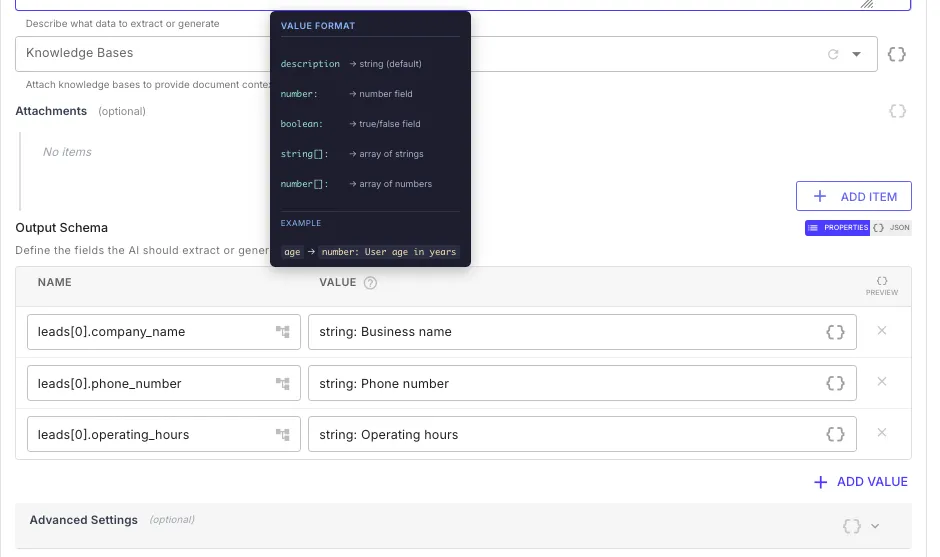
Define your schema using name-value pairs in the Output Schema section. Each field has a name (the JSON key path) and a value that specifies the type and description:
| Value Format | Type | Example |
|---|---|---|
description | string (default) | Business name |
number: description | number | number: Phone number |
boolean: description | boolean | boolean: Is verified |
string[]: description | array of strings | string[]: List of tags |
number[]: description | array of numbers | number[]: Monthly revenue figures |
Use dot notation and array notation in field names to define nested structures:
| Name | Value | Resulting JSON Path |
|---|---|---|
leads[0].company_name | string: Business name | leads[].company_name |
leads[0].phone_number | string: Phone number | leads[].phone_number |
summary.total | number: Total count | summary.total |
Advanced Settings
Section titled “Advanced Settings”| Field | Default | Description |
|---|---|---|
| Temperature | 0.7 (text) / 0.3 (structured) | Controls randomness — lower values produce more deterministic output |
| Max Tokens | 4,096 | Maximum tokens in the response (up to 32,768) |
| Timeout | 120s | Maximum wait time for the model response (up to 5 minutes) |
Step Output
Section titled “Step Output”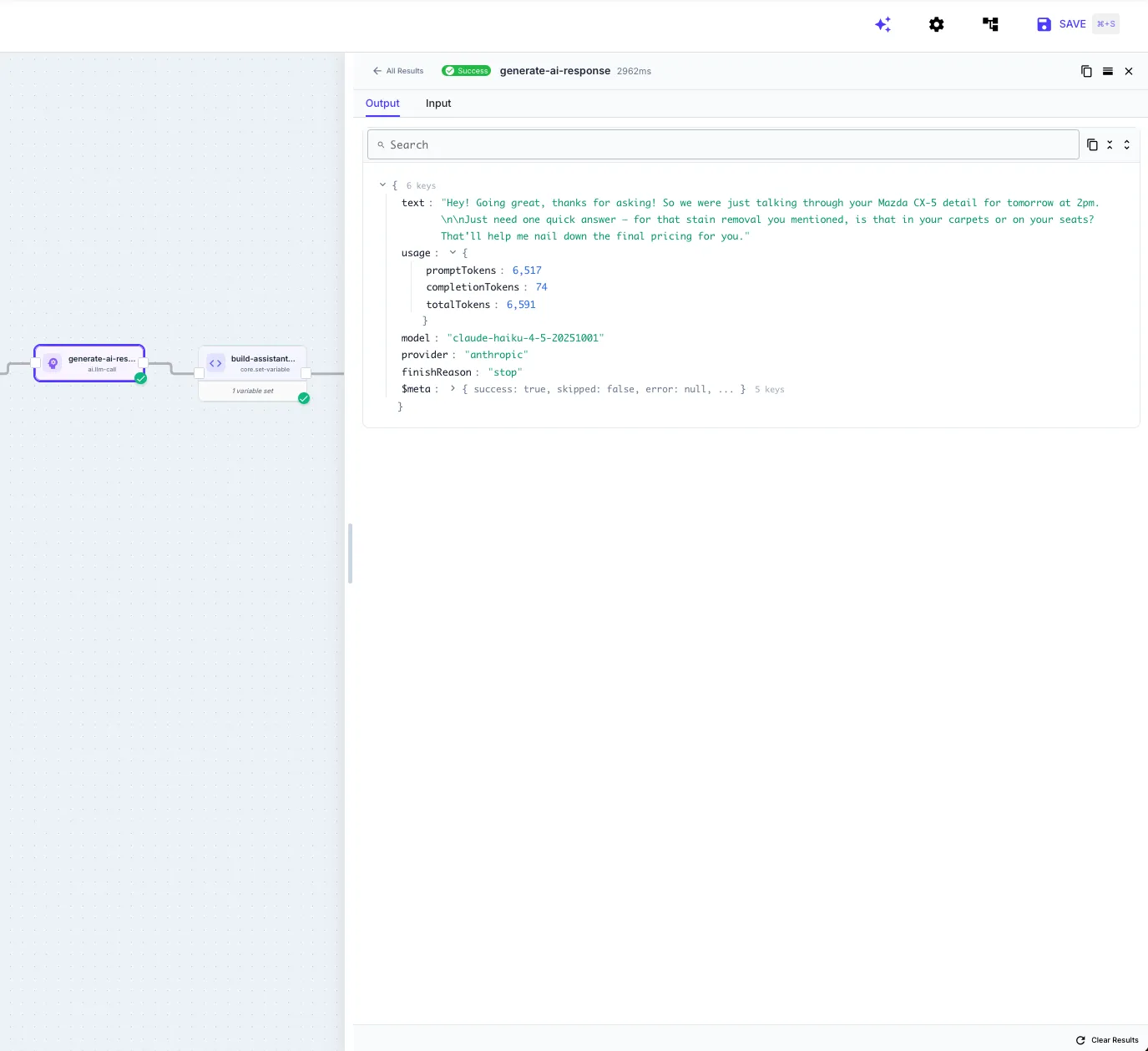
Reference the LLM Call output in later steps:
{{ my-llm-call.text }} // generated text (text mode){{ my-llm-call.object }} // structured JSON (structured output mode){{ my-llm-call.object.leads }} // access nested fields{{ my-llm-call.usage.totalTokens }} // total tokens consumed{{ my-llm-call.usage.promptTokens }} // input tokens{{ my-llm-call.usage.completionTokens }} // output tokens{{ my-llm-call.model }} // model ID used{{ my-llm-call.provider }} // provider name{{ my-llm-call.finishReason }} // "stop", "length", etc.Example: Data Extraction
Section titled “Example: Data Extraction”Extract structured business data from unstructured text:
| Field | Value |
|---|---|
| Provider | Anthropic |
| Model | claude-haiku-4-5-20251001 |
| System Prompt | You are a data extraction assistant. Extract ALL businesses mentioned into the leads array. |
| Prompt | Extract all business leads from this text: {{ search-for-leads.result }} |
| Output Schema | leads[0].company_name → Business name, leads[0].phone_number → Phone number |
The step returns a clean JSON object with a leads array — ready to pipe into a for-each loop, data store, or API call.
AI Agent
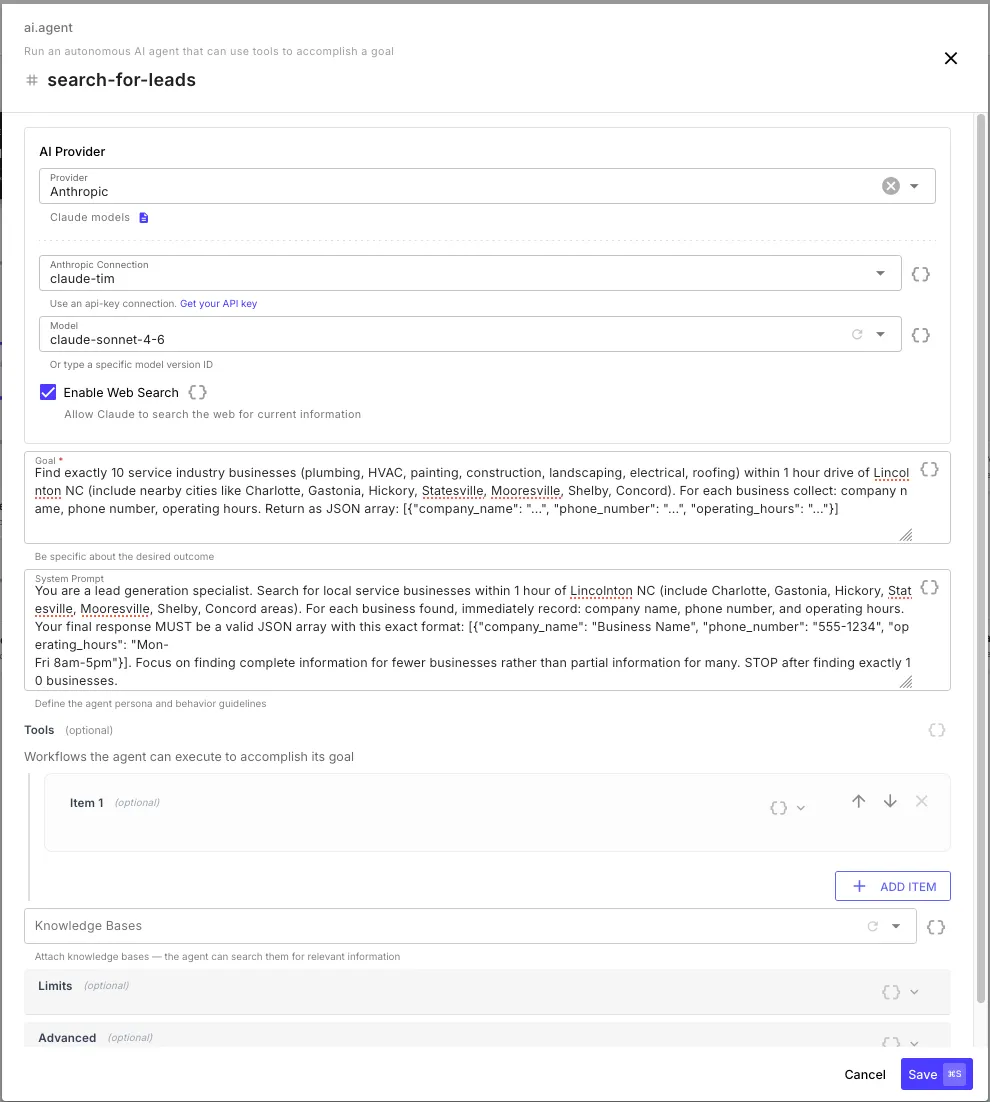
Section titled “AI Agent”The AI Agent step (ai.agent) runs an autonomous agent that works toward a goal you define. Unlike a single LLM Call, an agent can reason in multiple iterations and execute other workflows as tools — making decisions about what to do next based on the results of previous actions.
Configuration
Section titled “Configuration”AI Provider
Section titled “AI Provider”Same provider options as the LLM Call step — Anthropic, OpenAI, or Google with connection and model selection.
Goal and System Prompt
Section titled “Goal and System Prompt”| Field | Description |
|---|---|
| Goal | What the agent should accomplish — be specific about the desired outcome. Supports template expressions. |
| System Prompt | Define the agent’s persona and behavior guidelines — rules, constraints, output format instructions (optional) |
The Goal is the primary instruction — it tells the agent what to achieve. The System Prompt sets how the agent should behave while working toward that goal.
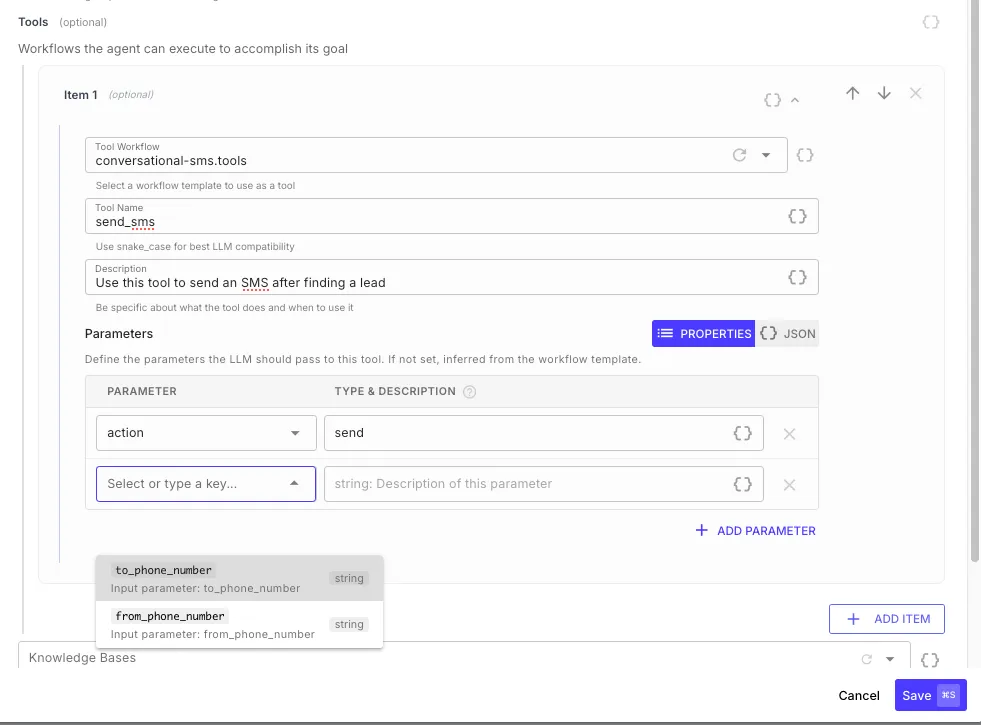
Tools are the agent’s capabilities — other workflow templates that the agent can call to take actions in the real world. Each tool is a workflow that the agent invokes with specific parameters and receives the workflow’s return values as a result.
| Field | Description |
|---|---|
| Tool Workflow | Select a workflow template — any workflow with the Template toggle enabled in Workflow Settings |
| Tool Name | The name the agent sees — use snake_case for best LLM compatibility (e.g., send_sms, create_ticket) |
| Description | Tell the agent what this tool does and when to use it — the agent reads this to decide which tool to call |
| Parameters | Define the input parameters the agent should pass. If not set, parameters are inferred from the workflow template’s Input Schema. |
Knowledge Bases
Section titled “Knowledge Bases”Attach knowledge bases for the agent to search during its reasoning. The agent can query them autonomously when it needs information to accomplish its goal.
Limits
Section titled “Limits”| Field | Default | Description |
|---|---|---|
| Max Iterations | 10 | Maximum number of LLM calls before the agent stops (1–50) |
| Max Tokens | 32,000 | Total token budget across all iterations (up to 100,000) |
| Timeout | 120s | Maximum total execution time for the entire agent run (up to 10 minutes) |
Advanced Settings
Section titled “Advanced Settings”| Field | Default | Description |
|---|---|---|
| Temperature | 0.7 | Controls randomness in responses and tool selection |
| Return Intermediate Steps | Off | When enabled, includes all tool calls and their results in the step output — useful for debugging and auditing |
Step Output
Section titled “Step Output”{{ my-agent.result }} // final response from the agent{{ my-agent.status }} // "completed", "max_iterations", "max_tokens", "timeout", or "error"{{ my-agent.usage.totalTokens }} // total tokens across all iterations{{ my-agent.usage.iterations }} // number of LLM calls made{{ my-agent.usage.toolCalls }} // number of tool calls executed{{ my-agent.durationMs }} // total execution time in millisecondsWhen Return Intermediate Steps is enabled:
{{ my-agent.steps }} // array of all tool calls{{ my-agent.steps[0].toolName }} // which tool was called{{ my-agent.steps[0].arguments }} // arguments the agent passed{{ my-agent.steps[0].result }} // what the tool returned{{ my-agent.steps[0].durationMs }} // how long the tool call tookHow the Agent Loop Works
Section titled “How the Agent Loop Works”- The agent reads the goal, system prompt, and any knowledge base context
- It decides what to do — either respond directly or call a tool
- If it calls a tool, the corresponding workflow template executes with the parameters the agent chose
- The tool’s return values come back to the agent as a result
- The agent reads the result and decides its next action — call another tool, call the same tool with different parameters, or return a final response
- This loop continues until the agent achieves the goal, or hits a limit (max iterations, max tokens, or timeout)
Example: Lead Enrichment Agent
Section titled “Example: Lead Enrichment Agent”An agent that takes a list of leads, cross-references each one against a CRM, and enriches the records with missing data from the web:
| Field | Value |
|---|---|
| Provider | Anthropic |
| Model | claude-sonnet-4-6 |
| Goal | For each lead in {{ initial.leads }}, look them up in the CRM. If the lead exists, check for missing fields (phone, company size, industry). Search the web to fill in any gaps and update the CRM record. |
| System Prompt | You are a data enrichment specialist. Always check the CRM first before searching externally. Only update fields that are empty or outdated. Return a summary of what you enriched. |
| Web Search | Enabled |
Tools:
| Tool Name | Workflow | Description |
|---|---|---|
lookup_crm_contact | crm-tools.lookup | Look up a contact in the CRM by email or name. Returns the existing record or null if not found. |
update_crm_contact | crm-tools.update | Update a CRM contact record with new field values. |
The agent iterates through each lead, queries the CRM to see what data already exists, searches the web to fill in gaps, and writes the enriched data back — adapting its approach based on what it finds for each lead.
Choosing Between LLM Call and AI Agent
Section titled “Choosing Between LLM Call and AI Agent”| Use Case | Step |
|---|---|
| Generate text from a prompt | LLM Call (text mode) |
| Extract structured data from text | LLM Call (structured output) |
| Classify, summarize, or transform content | LLM Call |
| Answer questions using your documents (RAG) | LLM Call with knowledge bases |
| Multi-step reasoning with tool use | AI Agent |
| Autonomous research and data collection | AI Agent with web search |
| Orchestrate multiple workflows based on AI decisions | AI Agent with workflow tools |
| Tasks where the AI needs to adapt its approach | AI Agent |