Salesforce External Client App Setup
To connect QuickFlo to your Salesforce instance, you need to create an External Client App in Salesforce. This app provides the Consumer Key and Consumer Secret that QuickFlo uses to authenticate via OAuth.
Prerequisites
Section titled “Prerequisites”- Salesforce administrator access
- Your Salesforce instance URL (e.g.,
https://mycompany.my.salesforce.com)
Create the External Client App
Section titled “Create the External Client App”-
Navigate to Setup
Log in to Salesforce and go to Setup (gear icon in the top right).
-
Find External Client App Manager
In the Quick Find box, search for “External Client App Manager” and click it.
-
Create a New External Client App
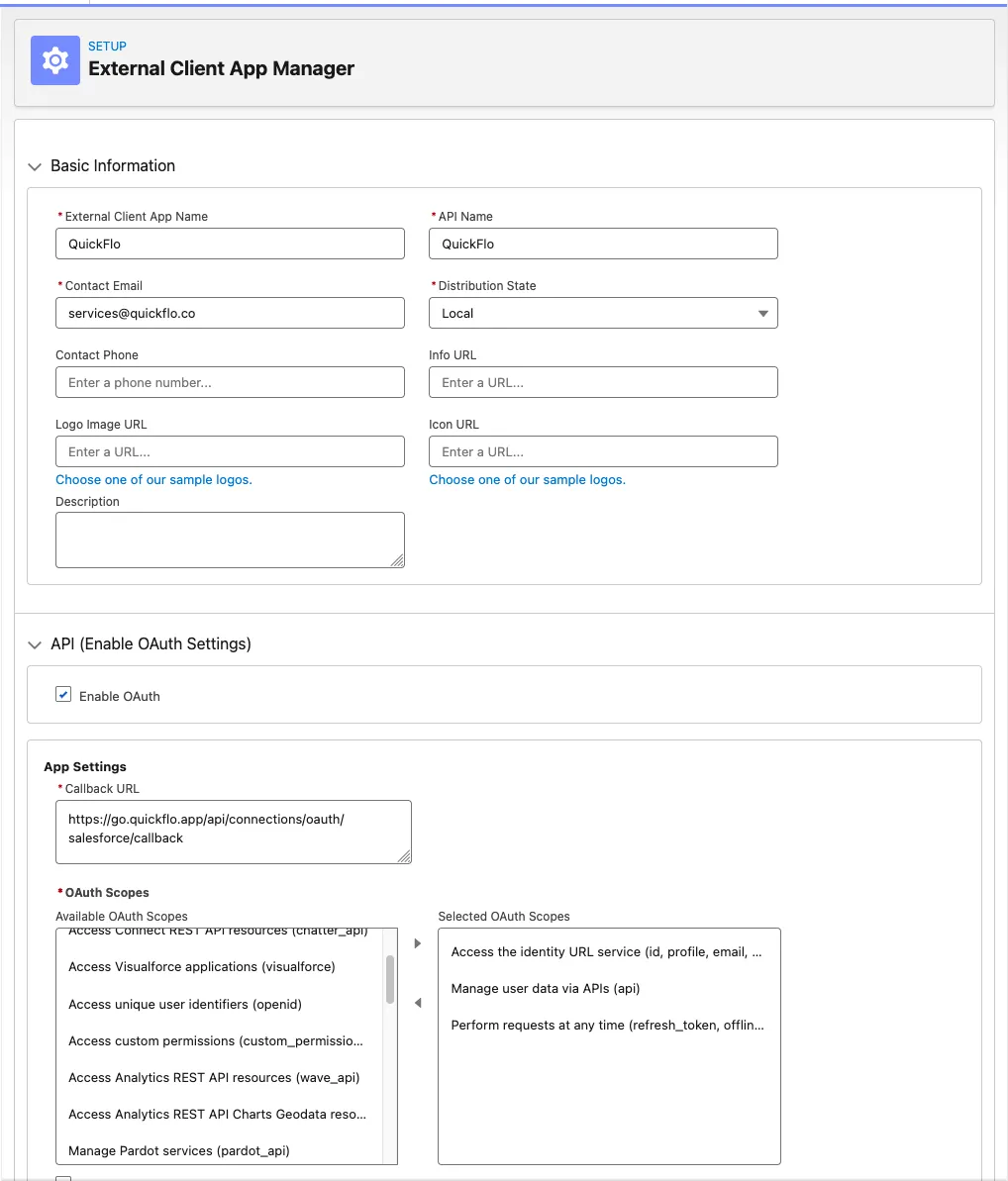
Click New External Client App. Fill in:
- External Client App Name:
QuickFlo - Contact Email: Your admin email address
- Description:
QuickFlo workflow automation integration
- External Client App Name:
-
Enable OAuth Settings
Under API (Enable OAuth Settings), check Enable OAuth and configure:
Callback URL:
https://go.quickflo.app/api/connections/oauth/salesforce/callbackSelected OAuth Scopes — move the following from Available to Selected:
Manage user data via APIs (api)Perform requests at any time (refresh_token, offline_access)Access the identity URL service (id, profile, email, address, phone)
-
Configure Flow Enablement and Security
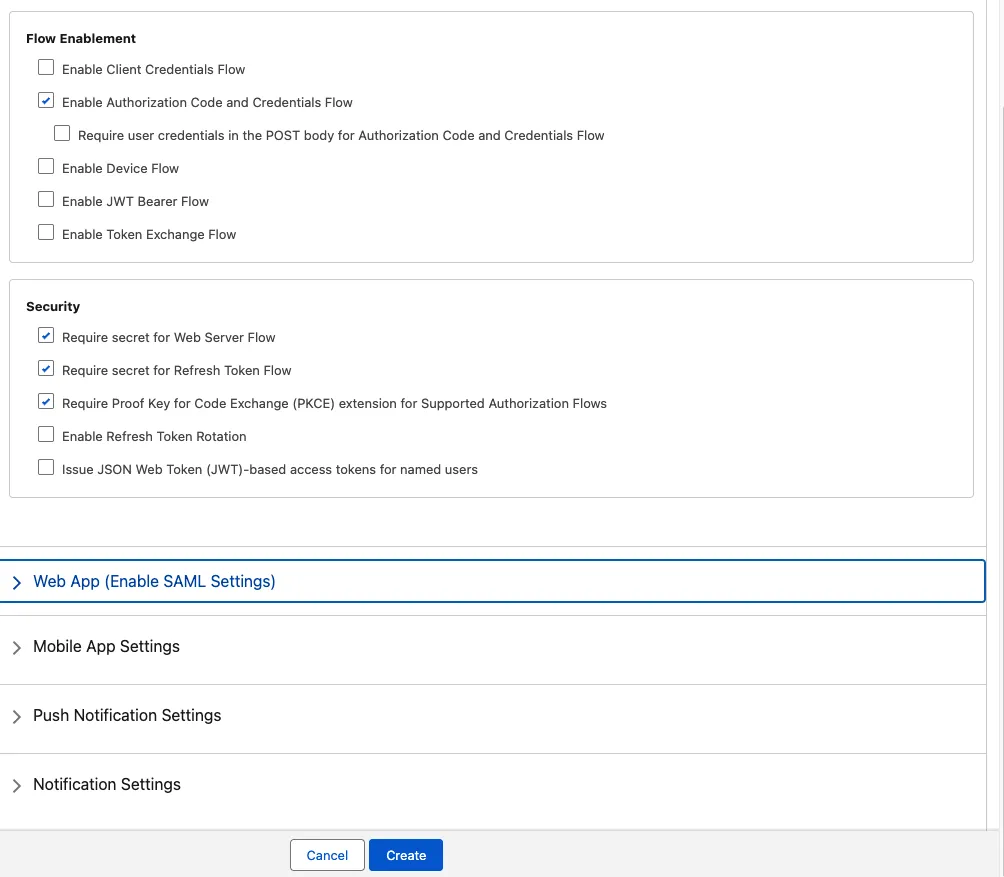
Scroll down to configure the authorization flow and security options:
Flow Enablement:
- Check Enable Authorization Code and Credentials Flow
Security:
- Check Require secret for Web Server Flow
- Check Require secret for Refresh Token Flow
- Check Require Proof Key for Code Exchange (PKCE) extension for Supported Authorization Flows
-
Save the External Client App
Click Create. Salesforce may take a few minutes to create the app.
-
Retrieve Consumer Key and Consumer Secret
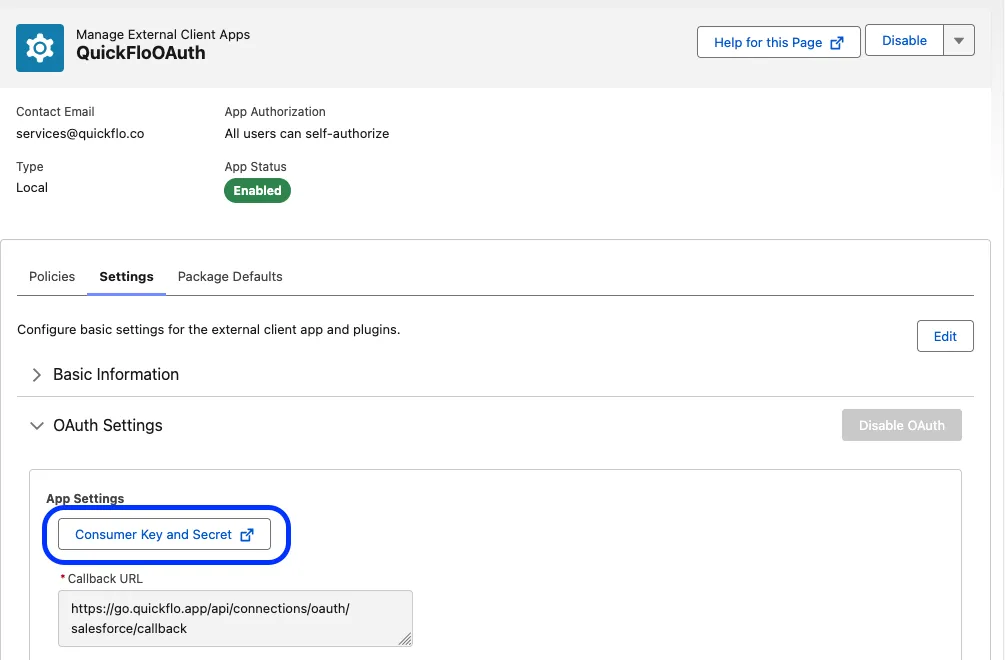
After saving, go to the app detail page:
- Find the Consumer Key (also called Client ID)
- Click Manage Consumer Details to reveal the Consumer Secret
- You may need to verify your identity via an email code
Connect in QuickFlo
Section titled “Connect in QuickFlo”-
In QuickFlo, navigate to Connections and click New Connection
-
Select Salesforce
-
Enter the following fields:
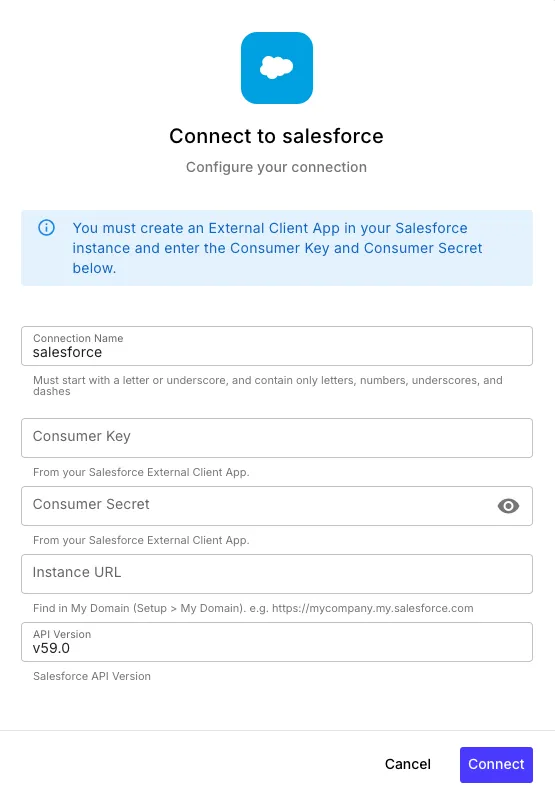
Field Value Consumer Key The Consumer Key from your External Client App Consumer Secret The Consumer Secret from your External Client App Instance URL Your Salesforce org URL (e.g., https://mycompany.my.salesforce.com)API Version Leave as v59.0unless you need a specific version -
Click Connect to start the OAuth flow
-
You’ll be redirected to Salesforce to authorize access
-
After authorization, you’ll be returned to QuickFlo with an active connection
Sandbox Environments
Section titled “Sandbox Environments”For Salesforce sandbox orgs, use the sandbox login URL as your Instance URL:
https://mycompany--sandbox.sandbox.my.salesforce.comOr the generic sandbox URL:
https://test.salesforce.comTroubleshooting
Section titled “Troubleshooting””redirect_uri_mismatch” Error
Section titled “”redirect_uri_mismatch” Error”Ensure the Callback URL in your External Client App exactly matches:
https://go.quickflo.app/api/connections/oauth/salesforce/callback“invalid_client” Error
Section titled ““invalid_client” Error”Double-check that you copied the Consumer Key and Consumer Secret correctly. The Consumer Secret is only shown once when you click Manage Consumer Details.
Connection Works But API Calls Fail
Section titled “Connection Works But API Calls Fail”Verify that the OAuth Scopes include Manage user data via APIs (api). Without this scope, the access token won’t have permission to make REST API calls.
Token Refresh Issues
Section titled “Token Refresh Issues”Make sure the Perform requests at any time (refresh_token, offline_access) scope is included. QuickFlo uses refresh tokens to maintain long-lived connections without requiring you to re-authorize.